
Prefer to do this by prompt? Connect iubenda to Claude or ChatGPT and set it up in the chat. See how it works
Welcome to our Privacy Controls and Cookie Solution Configurator!
- Intuitive Interface: Our interface makes configuring your Privacy Controls and Cookie Solution straightforward and user-friendly.
- Personalized Guidance: Follow a step-by-step process that recommends the best settings for your specific needs.
- Simple Customization: Easily tailor every aspect of your privacy notice with just a few clicks.
This guide is intended to walk you through the configuration of our Privacy Controls and Cookie Solution using our configurator.
- Check here to learn more about cookies and when a cookie notice is needed.
- Start here for more general information on our cookie management platform.
- You can find full detailed settings and customization in this advanced guide.
Kom godt i gang
To begin configuring your cookie notice go to Dashboard > [your website / app] then click on Generate now (or Edit, if you have already generated a banner) under the Privacy Controls and Cookie Solution area. This will take you directly to the configuration panel.
*If you don’t have a iubenda account yet, or you’ve not generated any document with iubenda, you can try our solution from here.

Med vores nye konfigurator vil du skulle udføre nogle forskellige handlinger for at konfigurere de vigtigste funktioner på din side/i din app.
Lad os se nærmere på dem.
Gældende geografisk område
Først vil du blive bedt om at vælge, hvor henholdsvis du og dine brugere bor. Dette er for at definere det geografiske område for din side/app, der er relevant for dig.
Her kan du vælge en af standardindstillingerne for dine brugeres placering eller en brugerdefineret liste over lande.

Når du er færdig, skal du bare klikke på Bekræft og fortsæt.
Complianceindstillinger
Vores konfigurator vælger automatisk de complianceindstillinger, der er relevante for din specifikke situation baseret på dine valg.
Du kan stadig justere standardindstillingerne ved at aktivere/deaktivere dem.

💡 Our system provides you with some explanations and suggestions when making choices that can result in compliance issues based on the choices you have made previously.

In this example, if you have selected that you or your users are in Europe and you disable the GDPR setting, the configurator indicates a likely compliance issue.
Vores automatiske konfigurationer er sammensat, så de overholder selv de strengeste af de vigtigste internationale lovkrav og bestemmelser, men du har selvfølgelig mulighed for at tilpasse dine indstillinger. Det gør du ved at klikke på REDIGER nederst i hvert felt.
A dive into manual compliance settings
When you click EDIT at the bottom of each compliance item, you will have full access and control over all settings and banner behavior related to that scope.
Let’s see, for example, the GDPR configuration:
Firstly, you can choose where to apply the GDPR, Worldwide or for EU users only.
Then, you can adjust the consent collection settings and manage banner elements and behavior.

Again, if some compliance issue arises, our configurator will show you an alert.
Similarly, this applies to the other compliances settings.
If you’re interested in learning more about the specific requirements of the different compliance areas and how they apply to your case, you can check:
Tilpasning af typografi og tekst
I dette afsnit finder du standardkonfigurationen og alle grafiske elementer i dit cookie-/samtykkebanner.

💡 Any changes you make will be instantly shown in the preview area on the right side of the page. You can also switch to different views (desktop, tablet, mobile), display the banner in other languages (if you have them enabled) or preview the differentiated per-country copy (if some compliance setting is applied only to a subset of users).
❗️ Make sure to select the correct region from the dropdown menu to ensure the preview displays correctly and according to each compliance item and territorial scope. As shown below:

Du kan administrere og tilpasse alle typografielementer i banneret.
Klik på REDIGER nederst i hvert felt for at:
- Ændre bannerets placering og tilføje en valgfri “lightbox”-effekt via funktionen til baggrundsskygge i konfigurationen Format og placering
- Redigere skriftstørrelsen og tilpasse banneret med en brugerdefineret tekst i afsnittet Tekst
- Ændre visuelle elementer på banneret, fx farver på banner og knapper , eller vælge mellem mørkt og lyst tema eller fra nogle standardtemaer, tilpasse overskriften med dine brandfarver og dit logo ved hjælp af konfigurationen af Tema
- Fjern iubendas branding fra modalvinduerne til cookiepolitikken og samtykkepræferencerne med White Label -funktionen (i konfigurationen af Tema )
- Tilpas privatlivswidgetten og dennes placering, eller indsæt et link efter eget valg for at give dine brugere mulighed for nem adgang til og redigering af deres privatlivsindstillinger
If you haven’t generated a Cookie Policy yet, the configurator will ask you to add one later, generate one with iubenda or use your own. We highly suggest that you implement a privacy and cookie policy and link it to the Privacy Controls and Cookie Solution as soon as possible. Find here how to generate one with iubenda.
Avancerede indstillinger
Clicking on Advanced Settings will open up a complete list of advanced options that will allow you to customize everything from banner animation, cookie policy link text, buttons and banner content to banner css, cookie expiration time and callbacks.
You can find practical instructions in our advanced Privacy Controls and Cookie Solution configuration guide.
Afslut, og gå til næste trin
Når du har afsluttet alle forrige trin, vil du få et samlet overblik og et resumé af dine valg.
Du kan altid gå tilbage og ændre indstillingerne i det relevante afsnit.
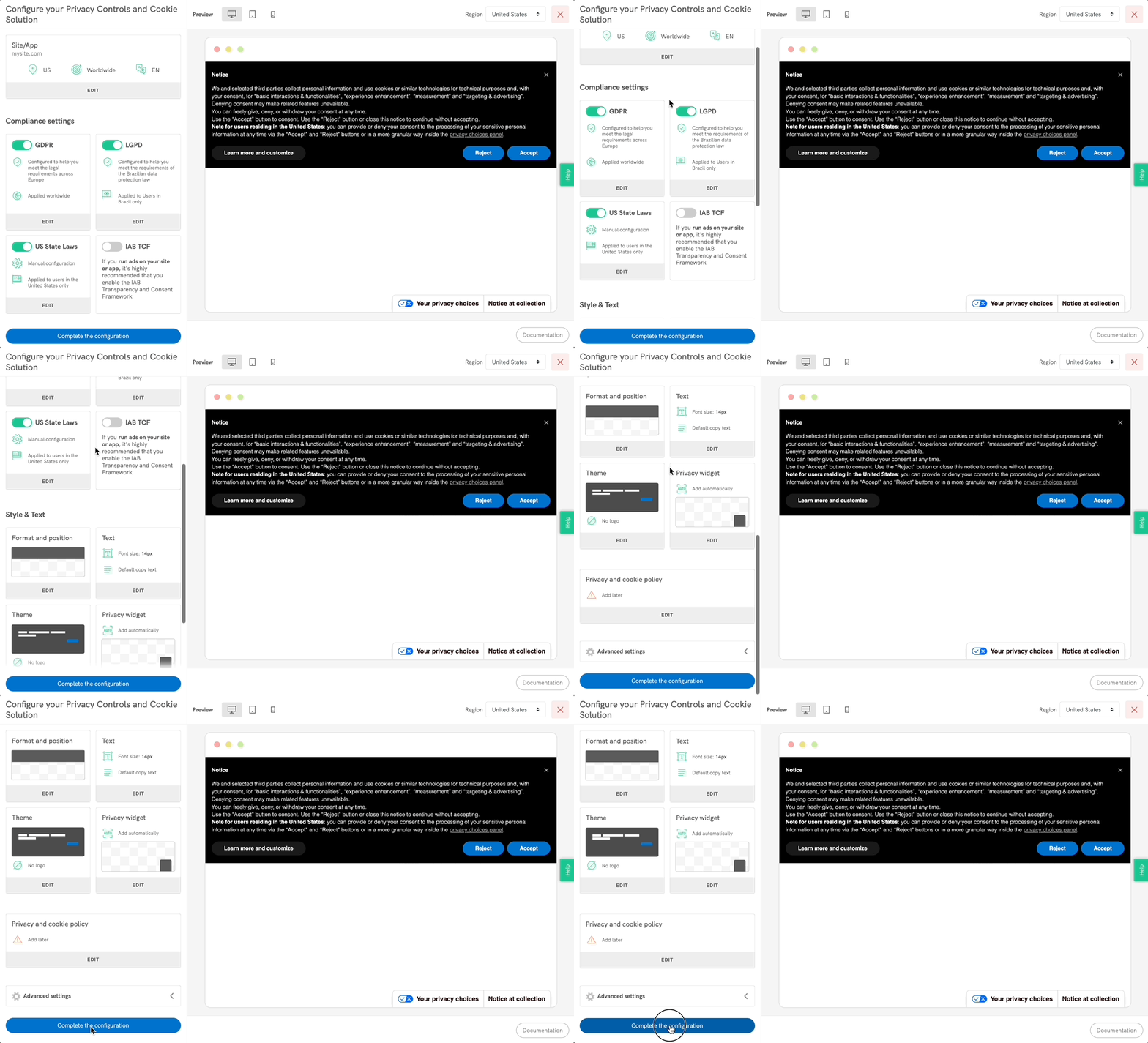
Når du er færdig og klar til at fortsætte, skal du klikke på Gennemfør konfiguration.
Og så er du færdig!
Clicking Complete the configuration takes you to the implementation page where you can copy your Privacy Controls and Cookie Solution code snippet. You can then embed the banner on your website using the generated snippet – pasting it into the <head> tag of your website’s HTML as the first element.
You can, alternatively, use one of our plugins: currently, we have plugins available for WordPress, Joomla!, PrestaShopand Magento.
Remote Configuration Feature
The remote configuration feature makes it easier to update your Privacy Controls and Cookie Solution settings by applying most changes directly to your website—no re-embedding needed.
What’s New?
With the latest update, the new snippet now includes all components of the Privacy Controls and Cookie Solution. This means every change in the banner, including Custom CSS, TCF tile, and US laws support, is automatically applied without re-embedding.
When saving your configuration, you’ll be notified if any changes still require re-embedding.
Please note:
- Users already using remote configuration (V1) will see a banner in their embedding section about the update.
- Legacy users can enable full remote configuration by selecting the “Enable Remote Configuration” checkbox in the configurator.

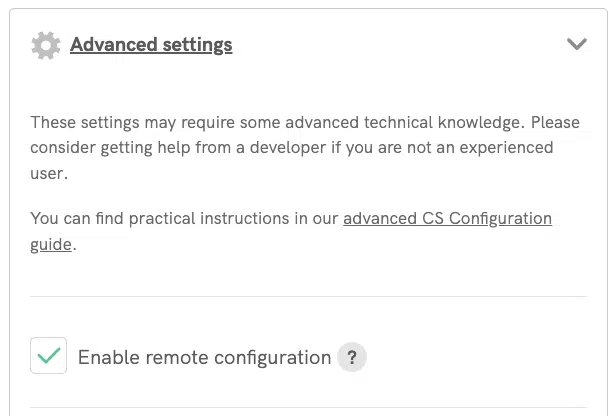
New configurations will have full remote configuration enabled by default.
Manage cookie consent with the Privacy Controls and Cookie Solution
Generate a cookie banner/consent bannerSe også
- The advanced guide further explains how to make advanced modifications to the cookie banner/consent banner and its behavior
- iubenda Privacy Controls and Cookie Solution – Introduction and Getting Started
- Introduction to the Prior Blocking of Cookie Scripts
- Cookies and the GDPR: What’s Really Required?
- Questions and answers regarding cookie consent management