

¿Has configurado tu documento de términos y condiciones para tu tienda de comercio electrónico de PrestaShop? Quédate para averiguar qué hay que incluir en los términos y condiciones para PrestaShop y saber cómo se generan y se integran en tu tienda de PrestaShop.
Es esencial que establezcas pautas claras para evitar malentendidos y protegerte ante cualquier responsabilidad. ¡Vamos a ayudarte a que este proceso sea muy sencillo y fácil de hacer para que puedas volver a concentrarte en lo que es realmente importante y estar listo para lanzar tu tienda de PrestaShop en poco tiempo!
→Already generated your terms and conditions? Jump to How to add Terms and Conditions on PrestaShop
Though they’re not always legally required for other types of businesses, terms and conditions are often mandatory for online stores.
That’s because they contain legally mandated information about the conditions of sale and disclosures on methods of payment, shipping, delivery, withdrawals, cancellation conditions, etc. – as commonly required by consumer protection regulations.
Even if you run a small shop on PrestaShop, you should define your terms. It’s for your own good.
Here’s an example European users generally have 14 days to send back what they’ve bought, it’s called “right of withdrawal”. If you don’t correctly inform users of their rights, the withdrawal period is legally extended to 1 year and 14 days!
Do you want to save time, money, and stress? Yes? Then, a proper terms and conditions agreement is needed for your PrestaShop store!
As your PrestaShop site is unique to your activities and services what you need to include in your terms and conditions may differ from someone else’s. However, it is important to note that there are a number of clauses that are standard for almost every website’s terms and conditions.
- Identification and description of your business
- User guidelines that clearly state what is acceptable use while visiting the website
- Disclaimers and limitation of liability statements
For E-commerce, you should consider essential clauses such as:
- Warranty clause, disclose details of your warranty terms
- Payment terms clause, about methods of payments and how payments are processed
- Withdrawal clause, can include things like the right to cancel an order, make exchanges, returns, and refunds
- Delivery information where relevant
- Any store-specific terms that may apply – here you may choose to add information related to any deals and promotion codes you may offer (unique to your PrestaShop store).
It is also imperative you clearly display accurate contact details for your company in your terms and conditions.
⚠️ Many of these terms, such as warranty and withdrawal information, are legally required.
Our Terms and Condition Generator is optimized for PrestaShop Start generating your Terms and Conditions now
Cómo añadir el acuerdo de Términos y Condiciones de iubenda en PrestaShop
Ahora que has generado tu documento de términos y condiciones, puedes utilizar el widget, que generalmente se coloca en el pie de página de tu sitio web de Prestashop y muestra un enlace de texto o un botón. Cuando se hace clic, se abre una ventana modal de estilo lightbox para mostrar los términos y condiciones.
Para la versión 1.7.8.0 de PrestaShop, sigue los siguientes pasos:
Using PrestaShop version 1.6? Follow the steps shown in this privacy policy guide using our standard embedding method.
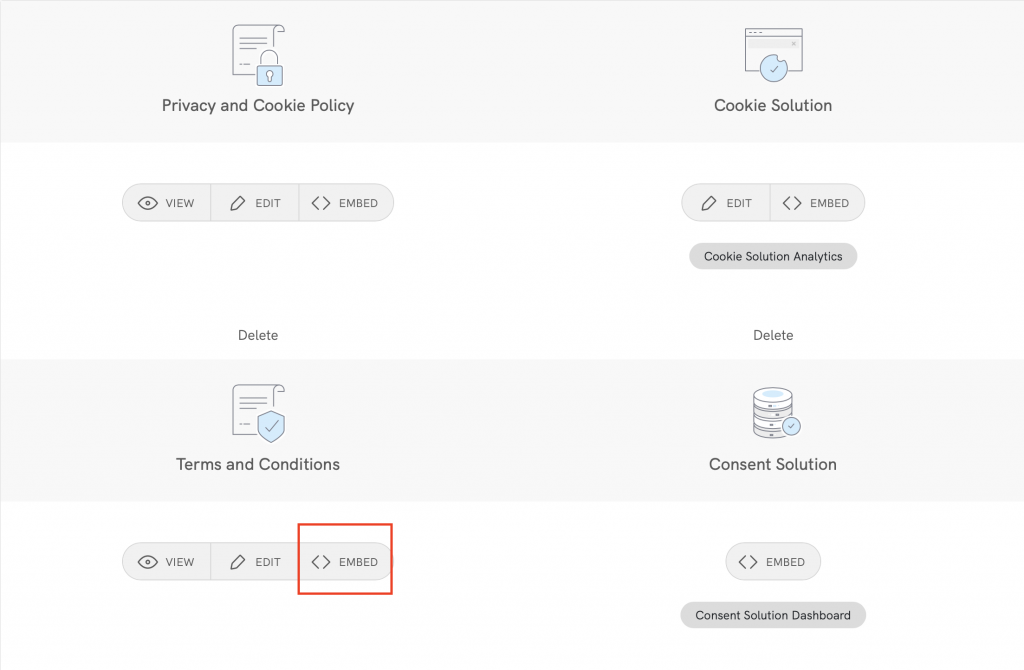
To get started first head over to your iubenda dashboard , click on [Your website] > Terms and Conditions > Embed
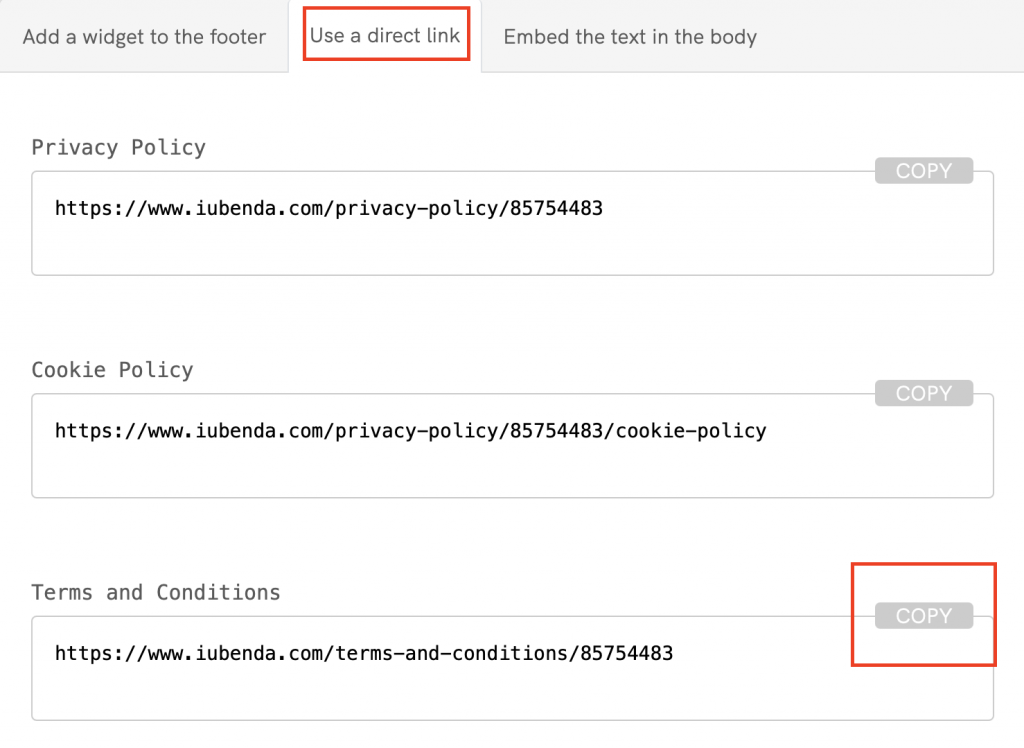
Para añadir un enlace directo, haz clic en Utilizar un enlace directo y en COPIAR en la sección titulada «Términos y Condiciones».
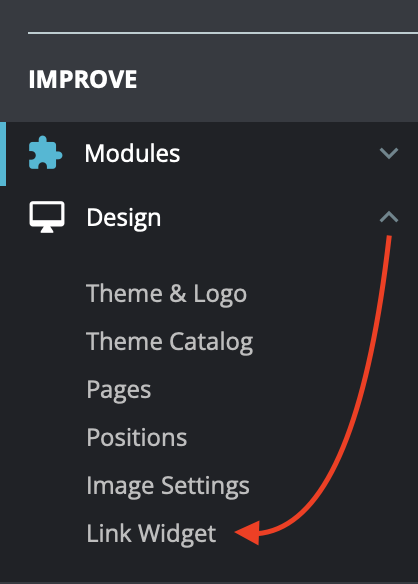
Después, accede al panel de administración de tu tienda de PrestaShop y dirígete a Design > Link widget (en la sección Improve):
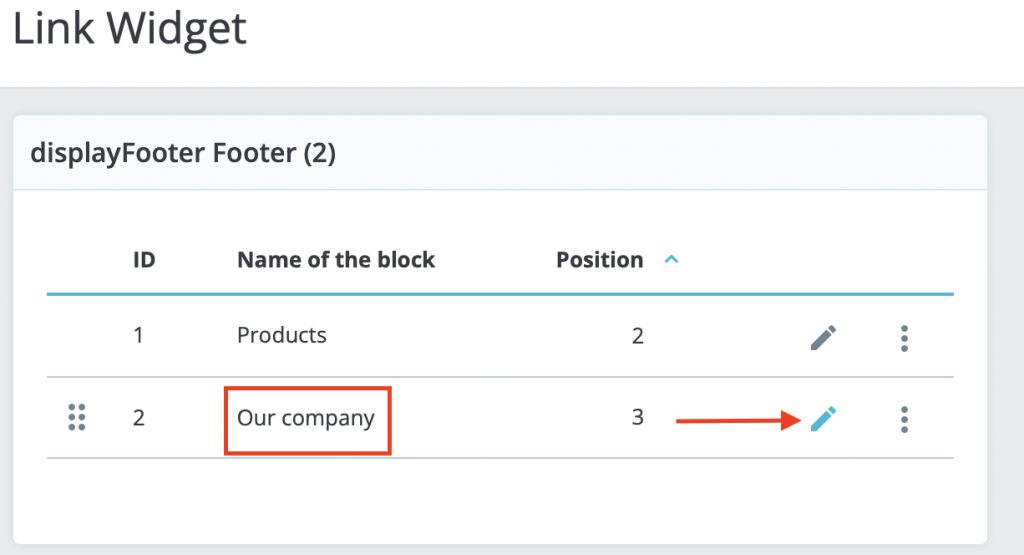
Debes tener un bloque titulado (Our) company o About (us). Haz clic en el botón Edit a la derecha (el símbolo del lápiz).
⚠️ NOTA: al seguir las siguientes instrucciones, debes copiar tu código de iubenda. No copies ni utilices el código del ejemplo que se muestra en esta guía.
Desplázate hacia abajo hasta Custom content y asigna el título: «Términos y Condiciones». A continuación, añade el enlace de los términos y condiciones de tu dashboard de iubenda en el recuadro de la URL. Luego, haz clic en el botón Add en la parte inferior derecha de la página.
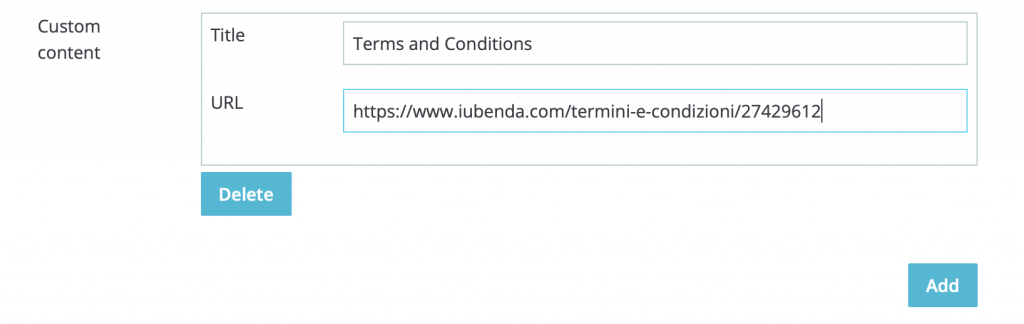
Nota: “27429612” es solo un ejemplo, tu política tendrá un valor diferente.
A continuación, desplázate hacia arriba hasta Content Pages y desmarca los términos y condiciones como se muestra a continuación. (Esto evitará mostrar el enlace a los términos y condiciones predeterminados de PrestaShop).
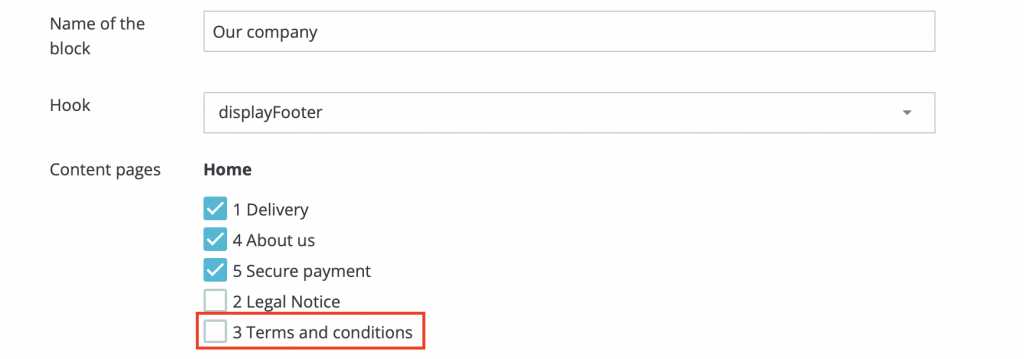
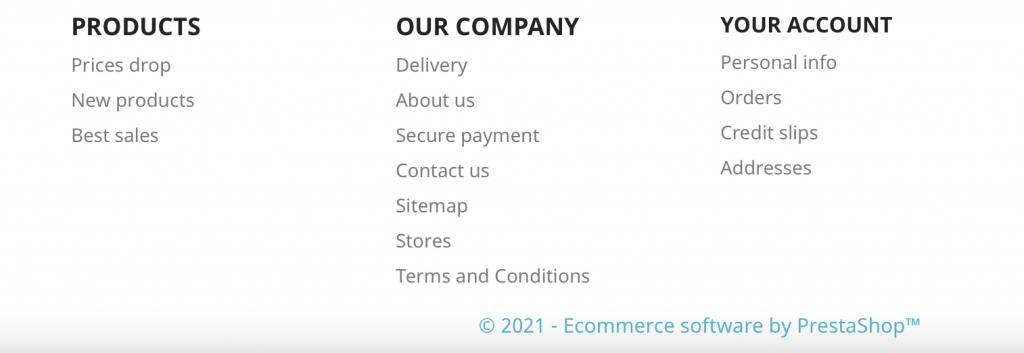
Por último, haz clic en guardar y verifica el front-end de tu tienda de Prestashop.
💡Not sure what privacy documents you need for your PrestaShop? Do this quick quiz to see which laws apply to you and your business.