
Hai impostato Termini e Condizioni per il tuo negozio PrestaShop? Continua a leggere per scoprire cosa includere nel tuo documento Termini e Condizioni, come generarlo e come integrarlo sul tuo negozio PrestaShop.
È essenziale stabilire delle linee guida chiare per prevenire ogni equivoco e proteggerti da responsabilità legali. Ti aiuteremo a rendere questo procedimento il più semplice possibile, così che tu possa concentrarti su ciò che è davvero importante e lanciare il tuo negozio PrestaShop in pochissimo tempo!
→Already generated your terms and conditions? Jump to How to add Terms and Conditions on PrestaShop
Though they’re not always legally required for other types of businesses, terms and conditions are often mandatory for online stores.
That’s because they contain legally mandated information about the conditions of sale and disclosures on methods of payment, shipping, delivery, withdrawals, cancellation conditions, etc. – as commonly required by consumer protection regulations.
Even if you run a small shop on PrestaShop, you should define your terms. It’s for your own good.
Here’s an example European users generally have 14 days to send back what they’ve bought, it’s called “right of withdrawal”. If you don’t correctly inform users of their rights, the withdrawal period is legally extended to 1 year and 14 days!
Do you want to save time, money, and stress? Yes? Then, a proper terms and conditions agreement is needed for your PrestaShop store!
As your PrestaShop site is unique to your activities and services what you need to include in your terms and conditions may differ from someone else’s. However, it is important to note that there are a number of clauses that are standard for almost every website’s terms and conditions.
- Identification and description of your business
- User guidelines that clearly state what is acceptable use while visiting the website
- Disclaimers and limitation of liability statements
For E-commerce, you should consider essential clauses such as:
- Warranty clause, disclose details of your warranty terms
- Payment terms clause, about methods of payments and how payments are processed
- Withdrawal clause, can include things like the right to cancel an order, make exchanges, returns, and refunds
- Delivery information where relevant
- Any store-specific terms that may apply – here you may choose to add information related to any deals and promotion codes you may offer (unique to your PrestaShop store).
It is also imperative you clearly display accurate contact details for your company in your terms and conditions.
⚠️ Many of these terms, such as warranty and withdrawal information, are legally required.
Our Terms and Condition Generator is optimized for PrestaShop Start generating your Terms and Conditions now
Come aggiungere i Termini e Condizioni di iubenda a PrestaShop
Ora che hai generato i tuoi Termini e Condizioni, puoi usare il widget che di solito si aggiunge al footer del tuo sito PrestaShop e si presenta come un link di testo o un pulsante. Quando si clicca, apre una finestra modale (lightbox) che mostra il tuo documento di Termini e Condizioni.
Per la versione 1.7.8.0 di PrestaShop segui queste istruzioni:
Using PrestaShop version 1.6? Follow the steps shown in this privacy policy guide using our standard embedding method.
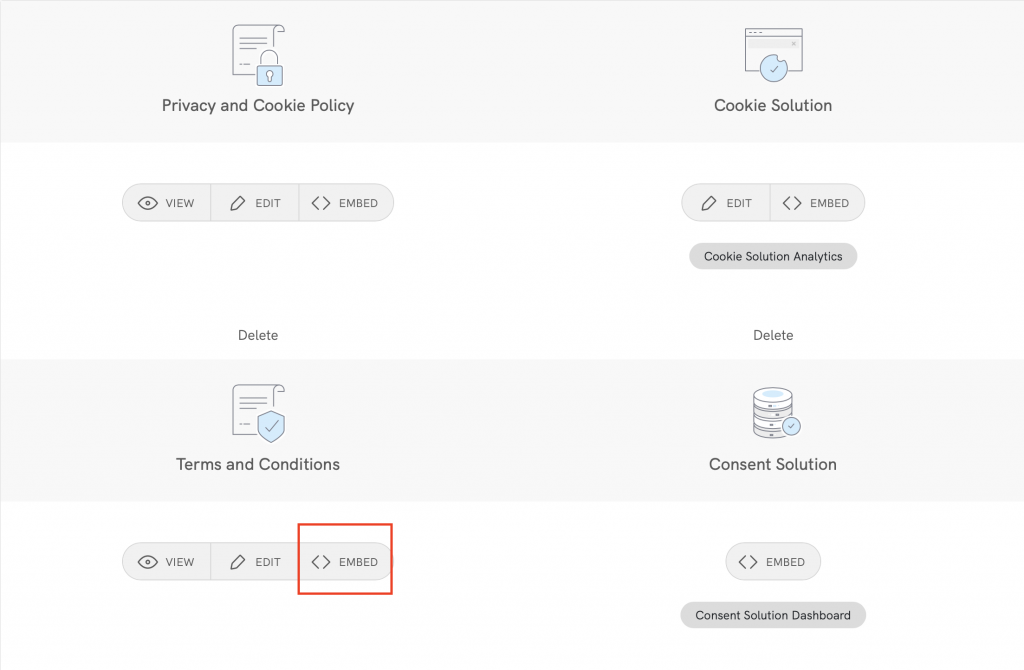
To get started first head over to your iubenda dashboard , click on [Your website] > Terms and Conditions > Embed
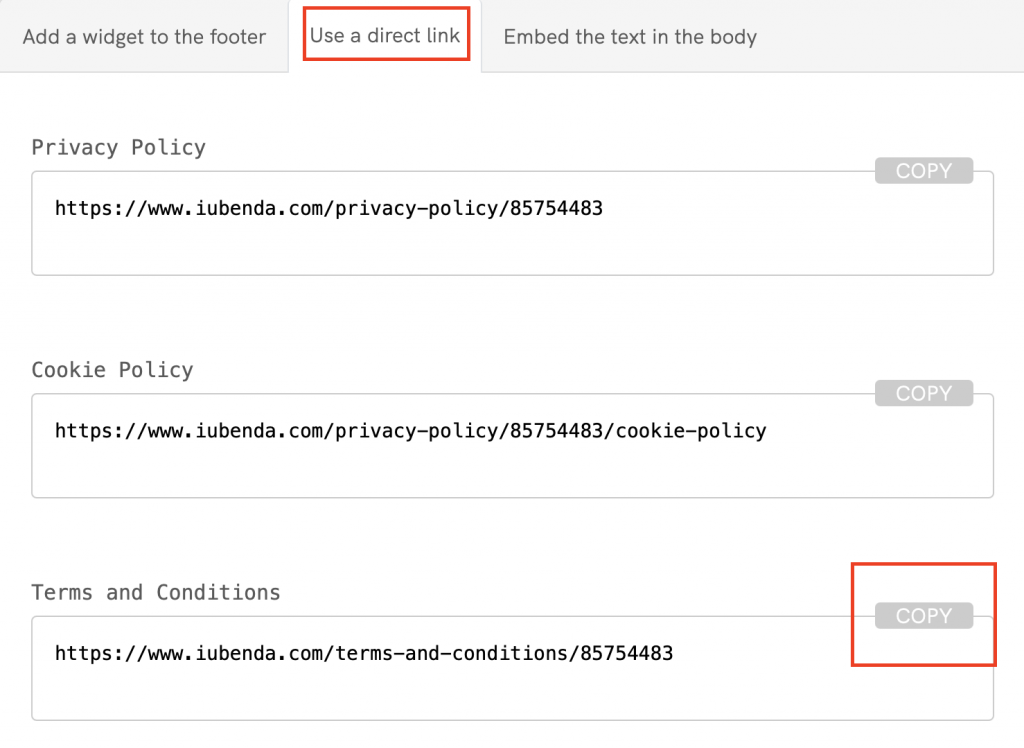
Per aggiungere il link diretto clicca su Usa il link diretto e poi su COPIA nella sezione “Termini e Condizioni”
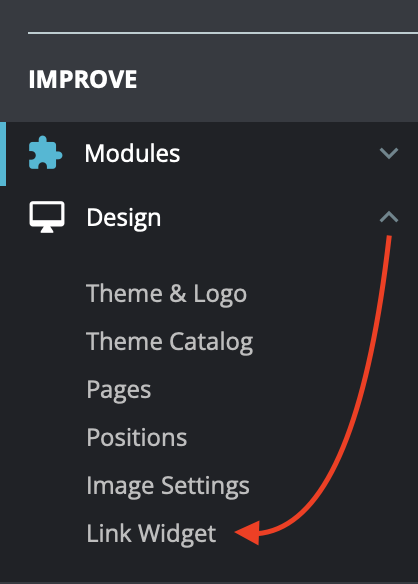
Ora, accedi al pannello admin del tuo negozio PrestaShop e vai a Design >Link widget (alla sezione chiamata Improve)
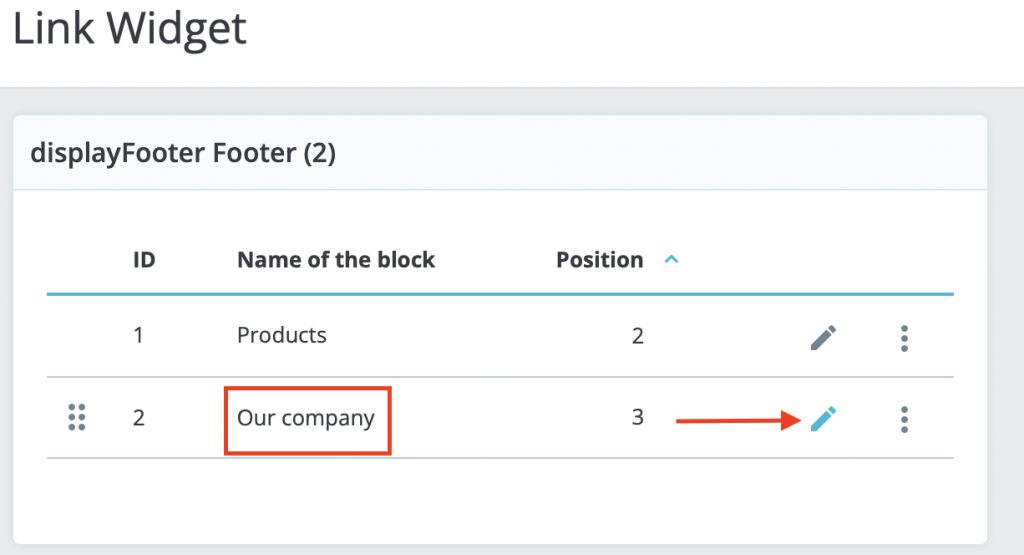
Vedrai un blocco chiamato (Our) company o About (us). Clicca sul pulsanteModifica sulla destra (il simbolo della penna)
⚠️ ATTENZIONE: Nel seguire le istruzioni riportate in seguito, devi copiare il tuo codice iubenda. Non utilizzare il codice esemplificativo mostrato in questa guida.
Scorri in basso fino a Custom content e rinominalo “Termini e Condizioni”. Adesso, aggiungi il link dei Termini e Condizioni copiato dalla dashboard iubenda nella casella URL. Clicca sul pulsante Add in basso a destra sulla pagina.
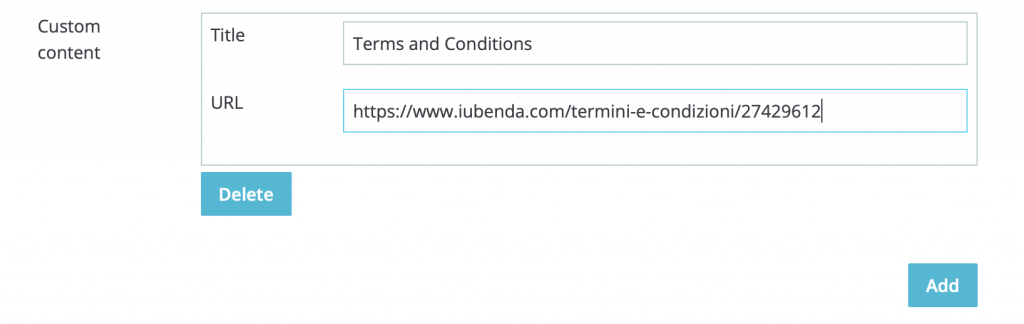
Nota bene: “27429612” è solo un esempio, il tuo documento avrà un numero diverso.
Ora torna a Content Pages e deseleziona Termini e Condizioni, come mostrato in basso. (questo farà si che non venga mostrato il link dei Termini e Condizioni di PrestaShop)
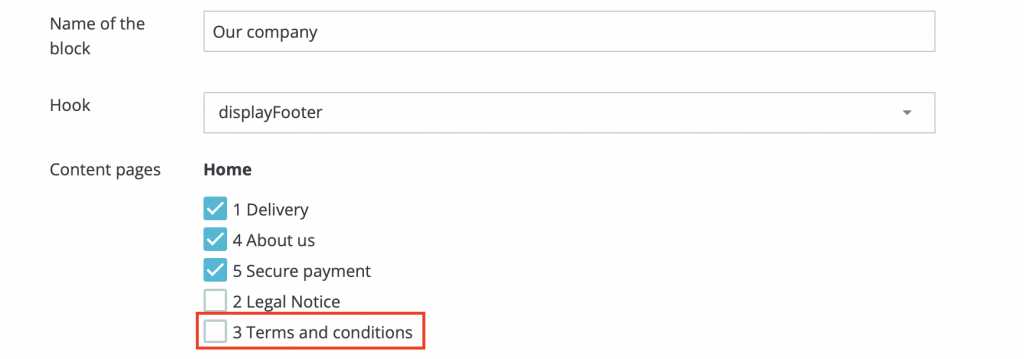
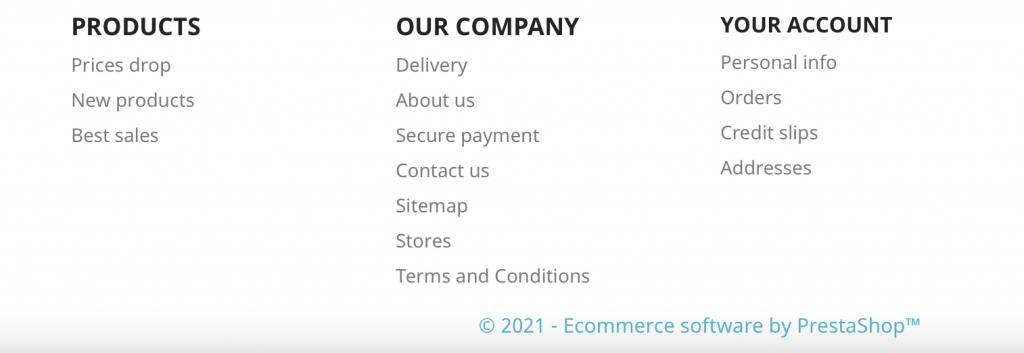
Infine, clicca su salva e controlla il front-end del tuo negozio Prestashop!
💡Not sure what privacy documents you need for your PrestaShop? Do this quick quiz to see which laws apply to you and your business.