
It’s now easier than ever to identify which services you need to add to your privacy and cookie policies with our in-dashboard Site Scanner.
🎥 How to identify services with the site scanner in the iubenda Generator (Video Tutorial)
To access it, simply go to your Dashboard > [click on your chosen website] Privacy and Cookie Policy > Edit > Add service.
💡 Don’t have an account? Create one for free here.
The Scanner button is located at the top of the services window:
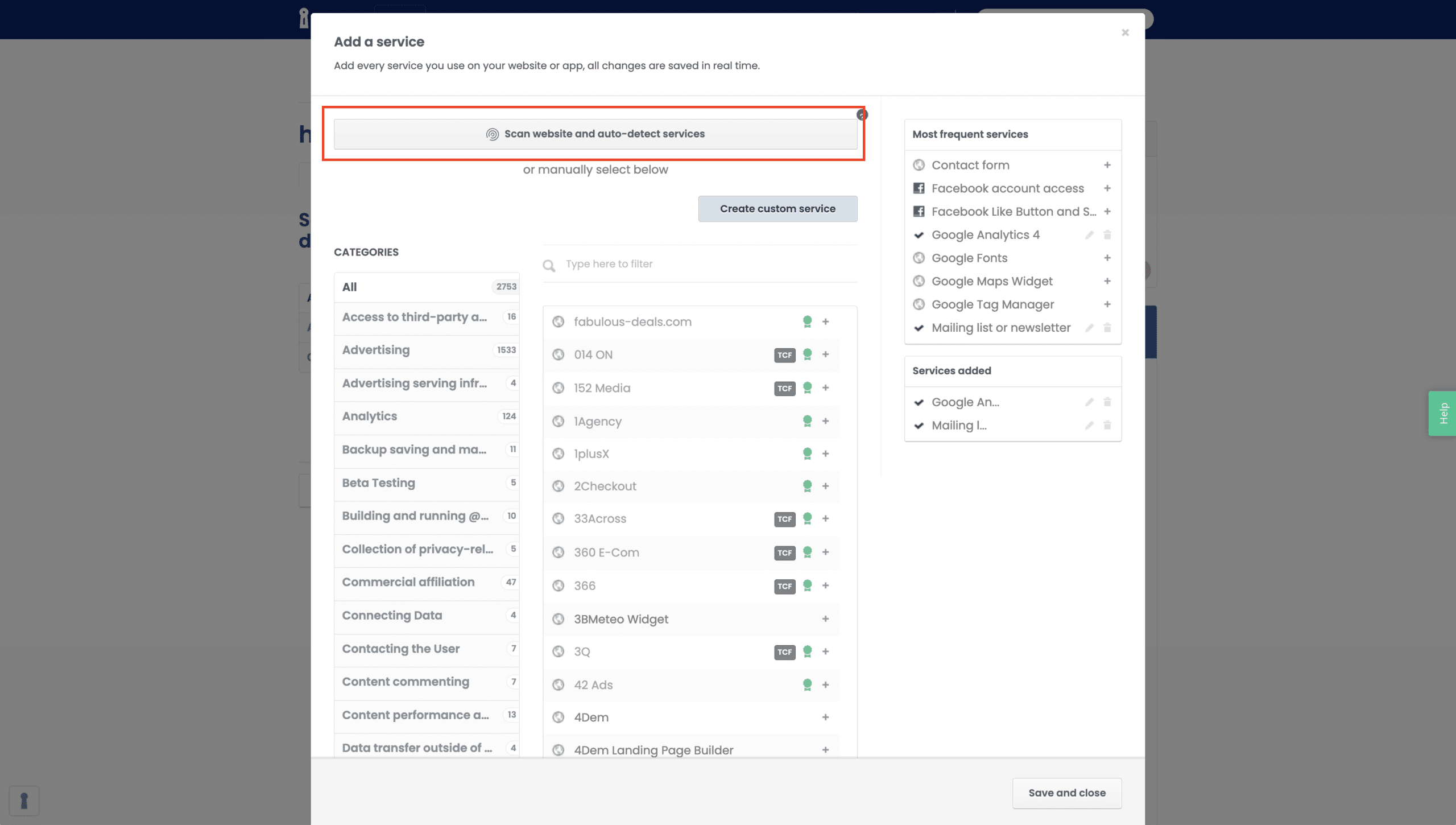
Next, click on the scanner button and enter the address of the website you’d like to scan and click on the “Scan” button.
The Scanner will then perform a thorough check of the website you entered, and will send the scan-report to your iubenda account email address.
The report will highlight any services running on your website which are not included in your current policy.
Furthermore, the services detected are shown directly in the generator.
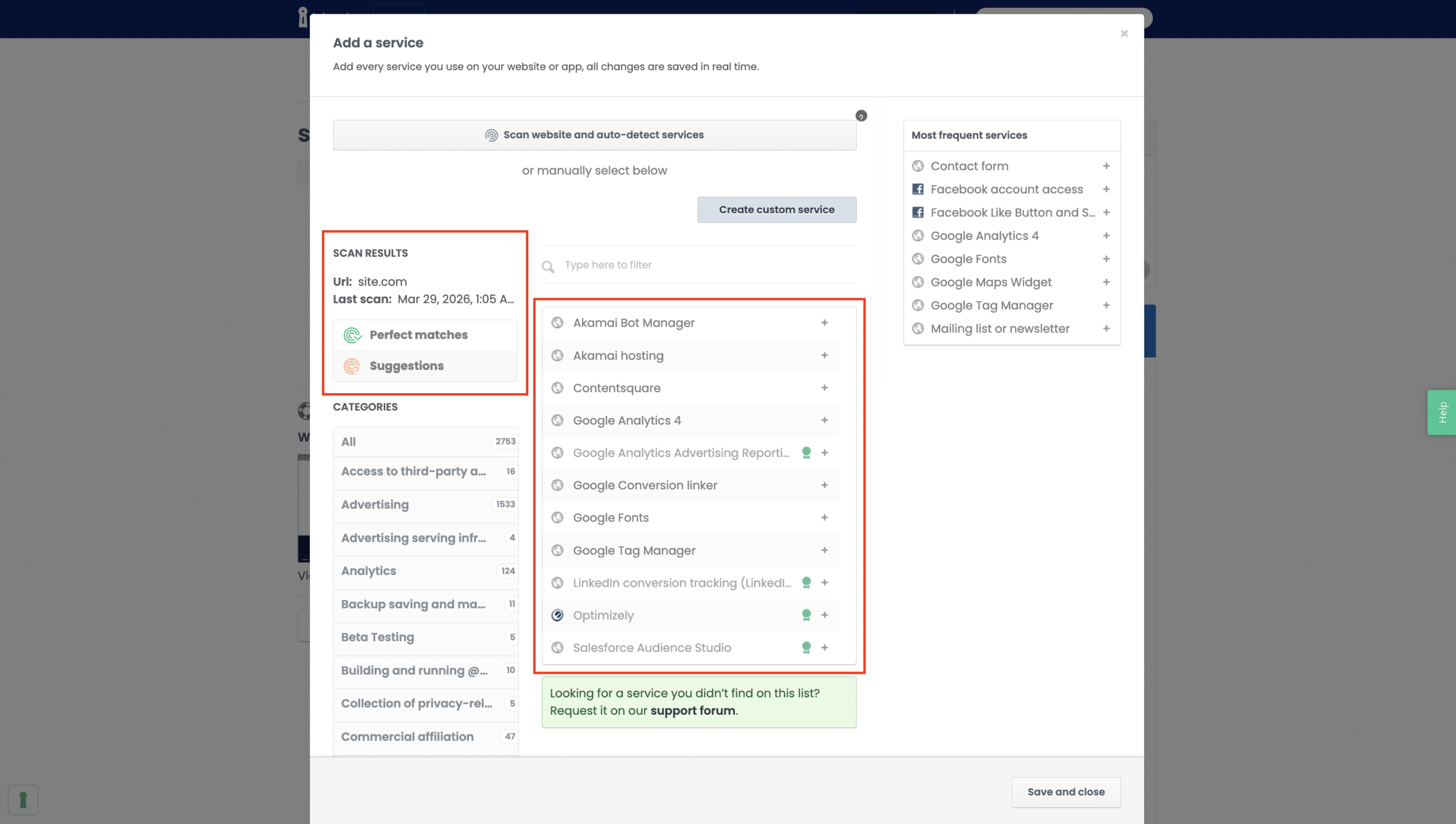
From the scan results box, you can check all the services that are found to be missing in your documents, already detected, and ready to be added. The results are organized into two categories:
- Perfect matches: services the scanner has identified with high confidence on your site. These are ready to be added directly to your policy.
- Suggestions: services that may be present on your site based on the scan. Review these to confirm whether they apply to your setup, and add the ones you use.
Click the + button next to any service to add it to your privacy policy.
What to do when you receive scanner results by email
iubenda periodically scans your site and sends you an email if it detects services that are missing from your policy. You can find these services by clicking the “Discover missing services” link in the email, or by navigating to the corresponding project in your dashboard and checking the Perfect matches and Suggestions categories on the left-hand side of the generator.
Here’s what to do once you receive these results:
- Review the scan results. Click the link in the email to go directly to the missing services, or open your project in the dashboard and check the results in the Privacy and Cookie Policy generator.
- Add the detected services. Add all Perfect matches and review the Suggestions for services you use. Click the + button next to each service to include it in your privacy policy.
- Save the configurator. If you’ve already embedded the privacy and cookie policy using one of the supported embedding options, the legal documents on your website will reflect the updated services within minutes.
Optional: rerun the scanner
If you want to confirm that your policy now covers all detected services, you can manually rerun the scanner from within the Privacy and Cookie Policy configurator. You can also run a scan from the main project scanner for a more complete overview of your compliance status. Learn how in our guide on first steps with iubenda for existing setups.
The scanner runs periodically based on your subscription type, so if you make changes to your website, they may be flagged with the next scan.
If you run into issues along the way:
- Having trouble generating your policy? See how to generate a privacy policy
- Need help modifying your policy? See how to edit a privacy policy
Caution
Our scanner is powerful, but can only scan for technologies that are directly integrated on your site’s pages. You will, therefore, still need to manually add the clauses related to data processing practices like newsletter sending.