
Once you’ve added a privacy policy to your HubSpot site (which also includes the cookie policy if you’ve activated it), you can complete the setup by embedding Privacy Controls and Cookie Solution. This lets you display a fully customizable cookie banner, collect cookie consent, and implement prior blocking as required by the ePrivacy Directive, GDPR, and other privacy regulations.
The integration on HubSpot works by creating a JavaScript file in HubSpot’s Design Tools, then attaching it to your site template so it loads on every page.
What the solution supports
When you embed the Privacy Controls and Cookie Solution on your HubSpot site, you get access to the full feature set of the iubenda cookie management platform:
- Fully customizable cookie banner with options to match your site’s branding and colors
- Automatic cookie policy generation based on the services detected on your site
- Auto-blocking of scripts that install cookies before consent is collected
- Integration with Google Consent Mode v2 (iubenda is a Google-certified CMP)
- Integration with IAB’s Transparency and Consent Framework (TCF 2.3)
- Support for US state privacy laws (CCPA/CPRA, VCDPA, CPA, CTDPA, and others)
- Support for the Swiss Federal Act on Data Protection (FADP)
- Support for Brazil’s LGPD
- Granular, per-category consent (e.g. Functionality, Experience, Marketing)
- Geo-detection to limit consent requests to regions where legally required
- Storage of consent proofs for accountability
How to add a cookie banner to your HubSpot site
Step 1: Copy the embed code from iubenda
Go to your iubenda Dashboard and click on [Your website] > Privacy Controls and Cookie Solution > Embed
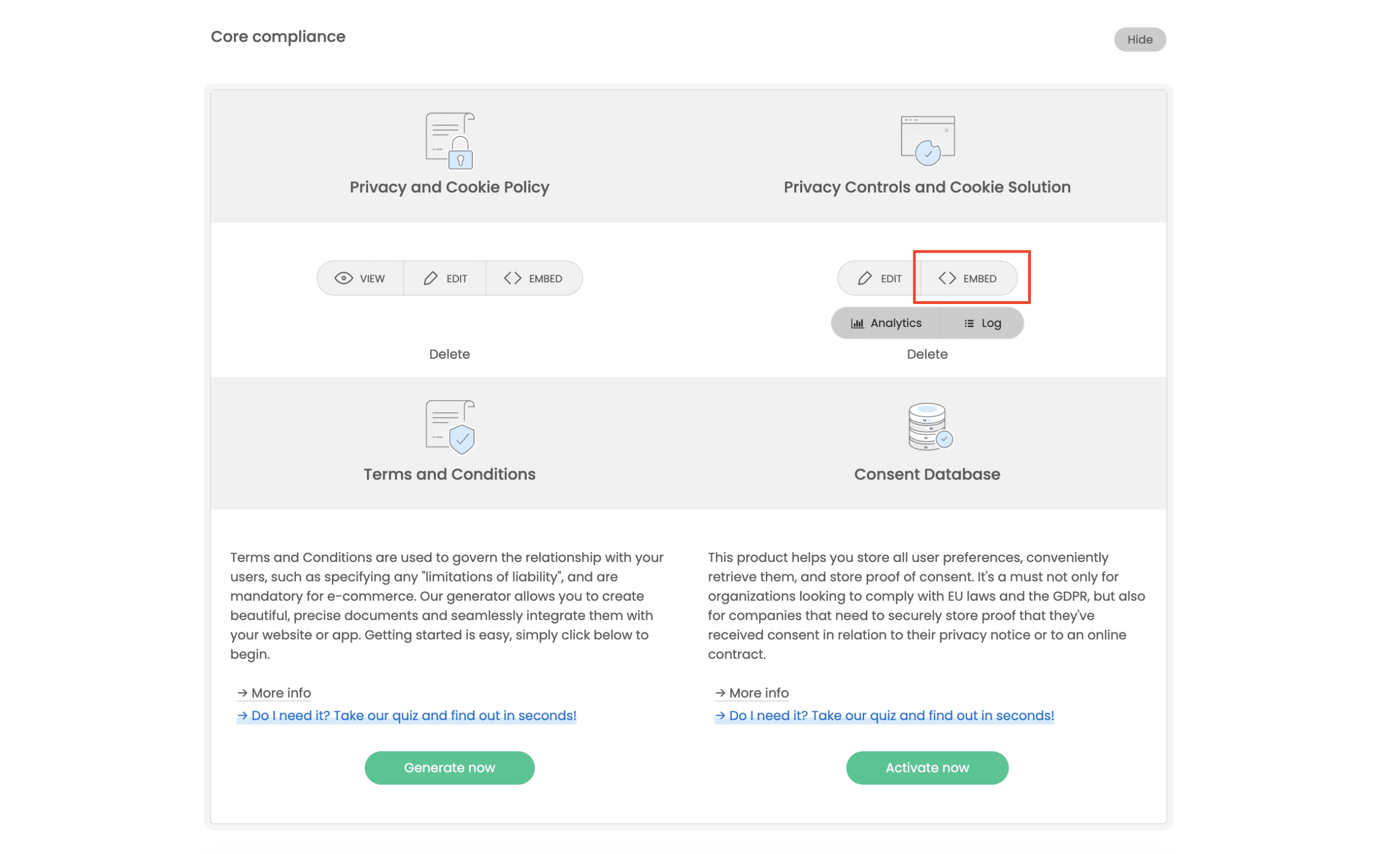
Copy the embed code snippet from the embedding section.
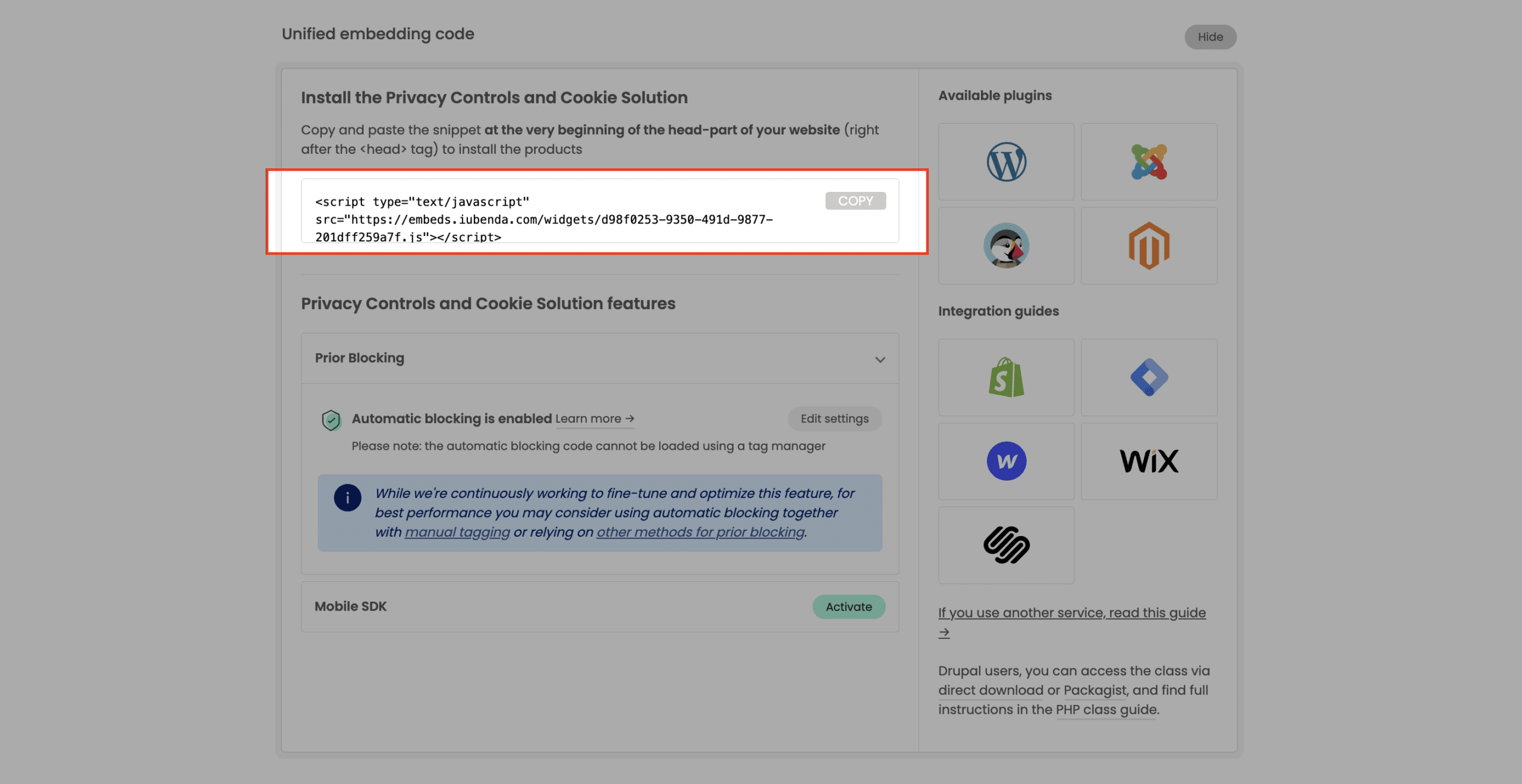
Keep this code handy. You’ll paste it into a JavaScript file in the next step.
Step 2: Create a JavaScript file in HubSpot Design Tools
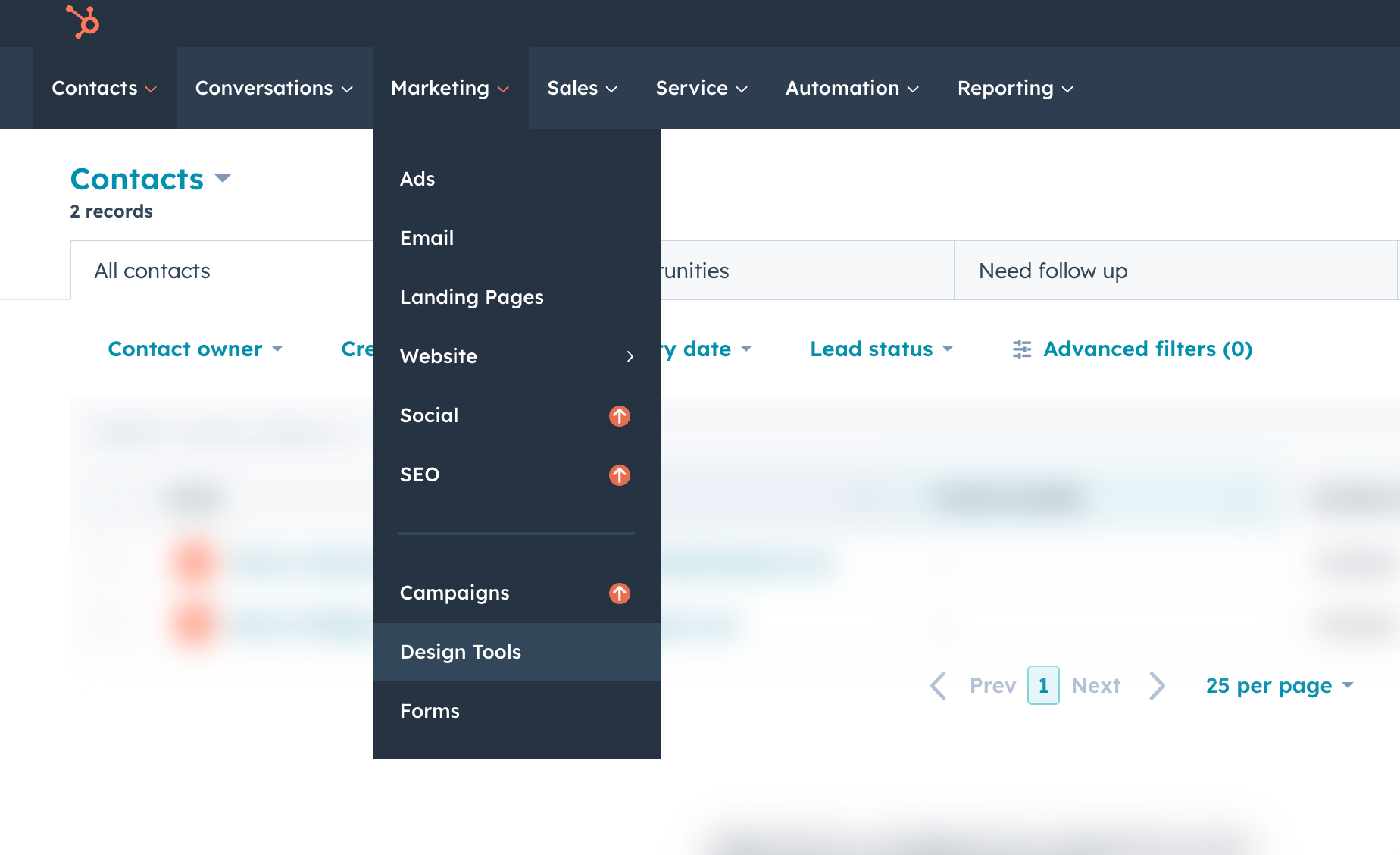
- In your HubSpot account, go to Marketing > Design Tools.
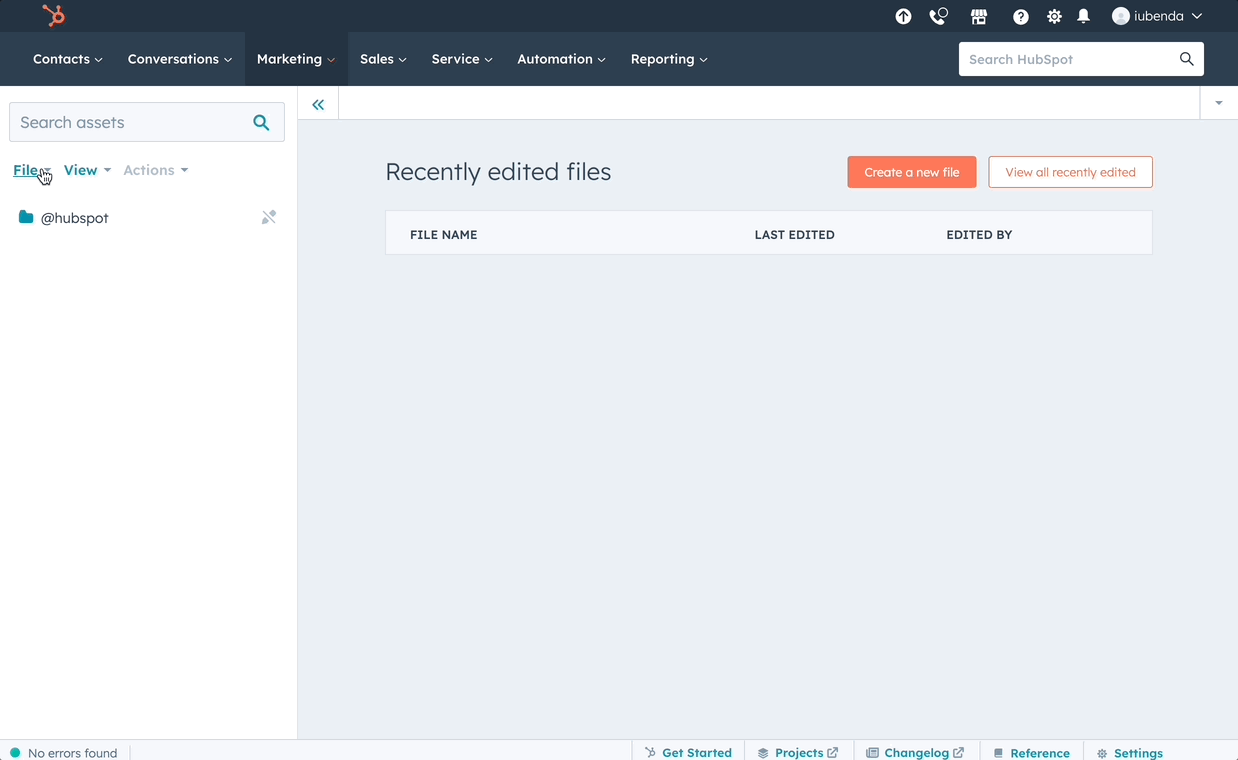
- In the sidebar, click File > New file. (You may need to click the folder icon first.)
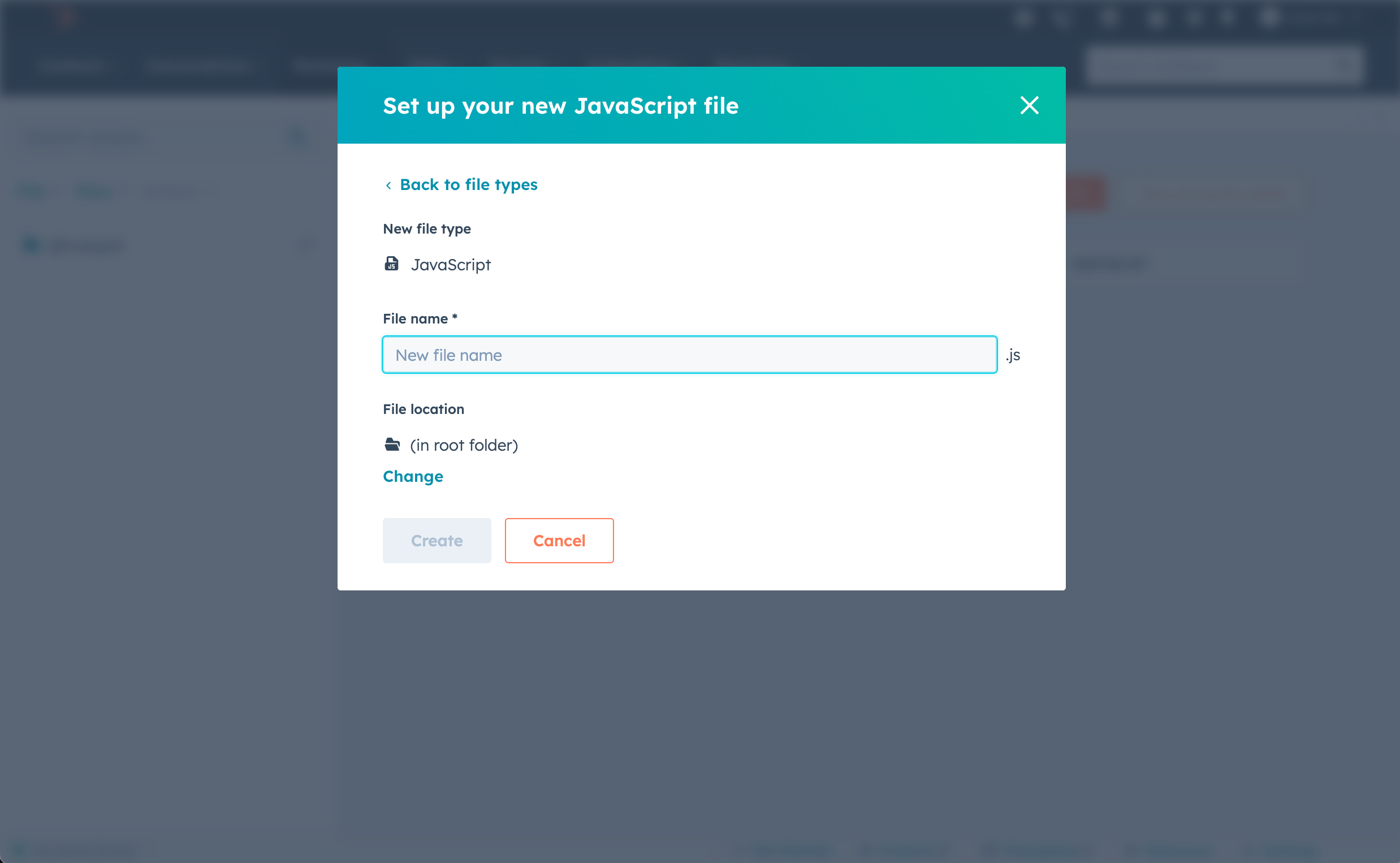
- Select JavaScript from the “What would you like to build today?” dropdown, then click Next.
- Enter a name for your script in the File name field (e.g. “iubenda-cookie-solution”).
- Click Change in the File location section and choose a folder.
- Click Create.
Step 3: Paste the iubenda code into the JavaScript file
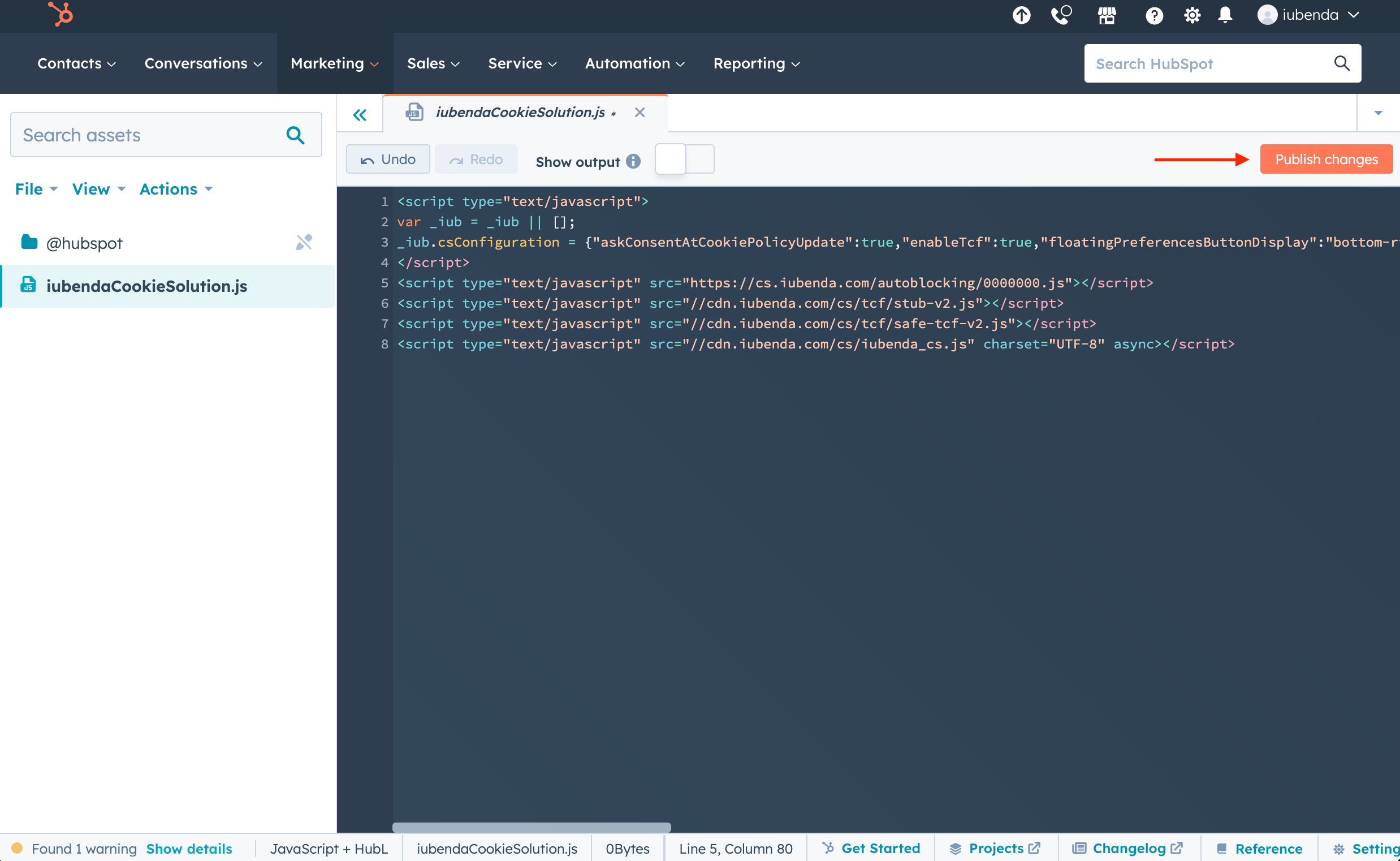
- Paste the Privacy Controls and Cookie Solution embed code (copied in Step 1) into the editor.
- If ESLint shows warnings or errors, use the Show output toggle to review them. These warnings typically do not prevent the code from working.
- Click Publish changes in the top right.
Step 4: Attach the script to your site template
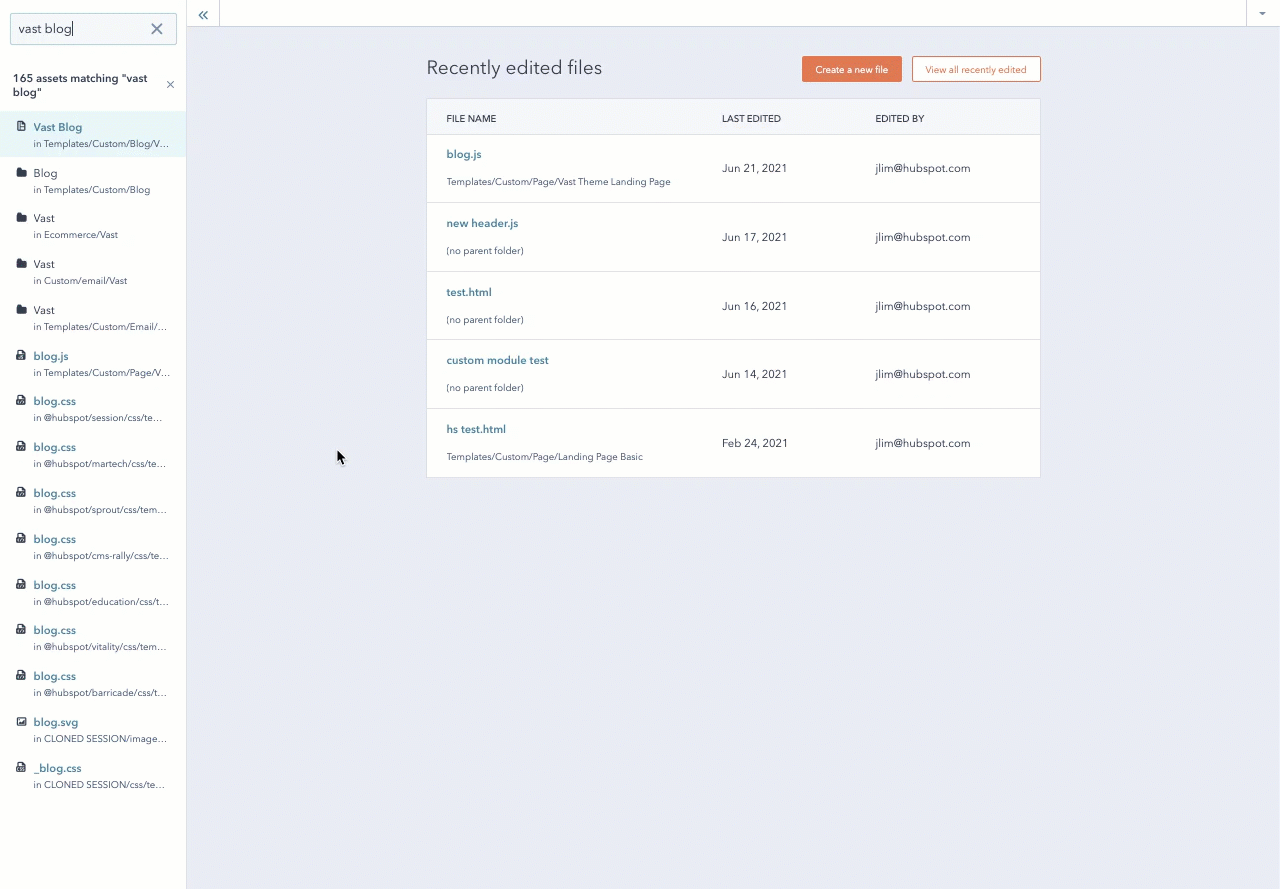
- In the Design Tools sidebar, find the template you want to update.
- In the inspector on the right, click the Edit tab.
- Under Linked JavaScript files, click Add and select the iubenda script you just created.
- Click Publish changes.
Repeat this for each template that your pages use, so the cookie banner appears across your entire site.
Step 5: Include the Privacy Controls and Cookie Solution script on your HubSpot pages
You can add the script to all pages on a domain at once, or to individual pages. Choose the method that works best for your setup.
Option A: Add the script to all pages on a domain
- In the Design Tools sidebar, right-click your script file and choose Actions > Copy public URL.
- Go to Settings (the gear icon in the main navigation bar).
- Navigate to Website > Pages in the left sidebar.
- Use the dropdown to select a specific domain, or apply the script to all domains.
- In the Site footer HTML field, paste the following code (replacing the placeholder with your public URL):
<!-- start iubendaCookieSolution.js -->
<script src="YOUR_FILE_PUBLIC_URL_HERE"></script>
<!-- end iubendaCookieSolution.js -->- Click Save.
Option B: Add the script to an individual page
- Go to Marketing > Website > Website Pages (or Landing Pages). Hover over the page you want to edit and click Edit.
- Click the Settings tab, then expand Advanced options.
- In the Footer HTML field, paste the following code (replacing the placeholder with your public URL):
<!-- start iubendaCookieSolution.js -->
<script src="YOUR_FILE_PUBLIC_URL_HERE"></script>
<!-- end iubendaCookieSolution.js -->- Click Update in the top right to apply your changes.
Set up prior blocking of cookie scripts
Few categories of cookies are exempt from the consent requirement. Therefore, almost all scripts that install or can install cookies must be blocked before consent is obtained.
Simplify your cookie-blocking process with auto-blocking
There’s a simpler option available for the prior blocking of cookies and trackers. Our auto-blocking feature automates the process, saving you time and effort.
If you prefer to manually tag your scripts, see our guide on blocking via manual tagging or explore other methods in our general introduction to the prior blocking of cookies.
Using Google Tag Manager with HubSpot
If you manage third-party scripts through Google Tag Manager (GTM), you can use iubenda’s GTM template for more granular control over consent-based script firing. This approach works well for HubSpot sites with complex tracking setups.
Good to know: HubSpot-specific considerations
Keep these points in mind when using Privacy Controls and Cookie Solution on HubSpot:
- JavaScript file vs. code injection. The recommended method for HubSpot is to create a dedicated JavaScript file in Design Tools rather than pasting the code directly into the site footer HTML. The JS file approach keeps your code organized and makes it easier to update. However, if you only need the banner on a few pages, using the footer HTML method (Step 5, Option B) is a simpler alternative.
- Google Tag Manager integration. If you already use GTM on your HubSpot site, you can load the iubenda snippet through GTM instead. This gives you centralized control over all your tags and works well with Google Consent Mode.
- Auto-blocking coverage. Auto-blocking works at the JavaScript level and handles most third-party scripts. For scripts not automatically detected, use the manual tagging method or route scripts through Google Tag Manager for more control.