
If you operate in the EU (or have EU visitors) and use cookies on your Wix site, privacy regulations like the GDPR and the ePrivacy Directive require you to:
- Provide a cookie policy (you can add a cookie section to your privacy policy, learn more about creating a Privacy and Cookie Policy for Wix)
- Display a cookie banner at the user’s first visit
- Block non-exempt cookies (e.g. via Google Analytics) before obtaining user consent
- Release cookies only after informed consent has been provided
iubenda’s Privacy Controls and Cookie Solution handles all of this: it displays a fully customizable cookie banner, collects consent, implements prior blocking, and supports compliance with multiple privacy frameworks.
To install the Privacy Controls and Cookie Solution, you need to add custom code to the <head> of your Wix site. This requires a paid Wix plan On the free plan, you can only link to your iubenda-hosted policy page. More info on Wix’s custom code documentation.
What the solution supports
When you embed the Privacy Controls and Cookie Solution on your Wix site, you get access to the full iubenda cookie management platform:
- Fully customizable cookie banner with options to match your site’s branding and colors
- Automatic cookie policy generation based on the services detected on your site
- Auto-blocking of scripts that install cookies before consent is collected
- Integration with Google Consent Mode v2 (iubenda is a Google-certified CMP)
- Integration with IAB’s Transparency and Consent Framework (TCF 2.3)
- Support for US state privacy laws (CCPA/CPRA, VCDPA, CPA, CTDPA, and others)
- Support for the Swiss Federal Act on Data Protection (FADP)
- Support for Brazil’s LGPD
- Granular, per-category consent (e.g. Functionality, Experience, Marketing)
- Geo-detection to limit consent requests to regions where legally required
- Storage of consent proofs for accountability
How to add the iubenda cookie banner on your Wix website
- Generate your cookie banner:

- Copy and paste the resulting code snippet into the
<head>tag of your pages as the first element (learn more about embedding custom code on Wix) and you’re done!
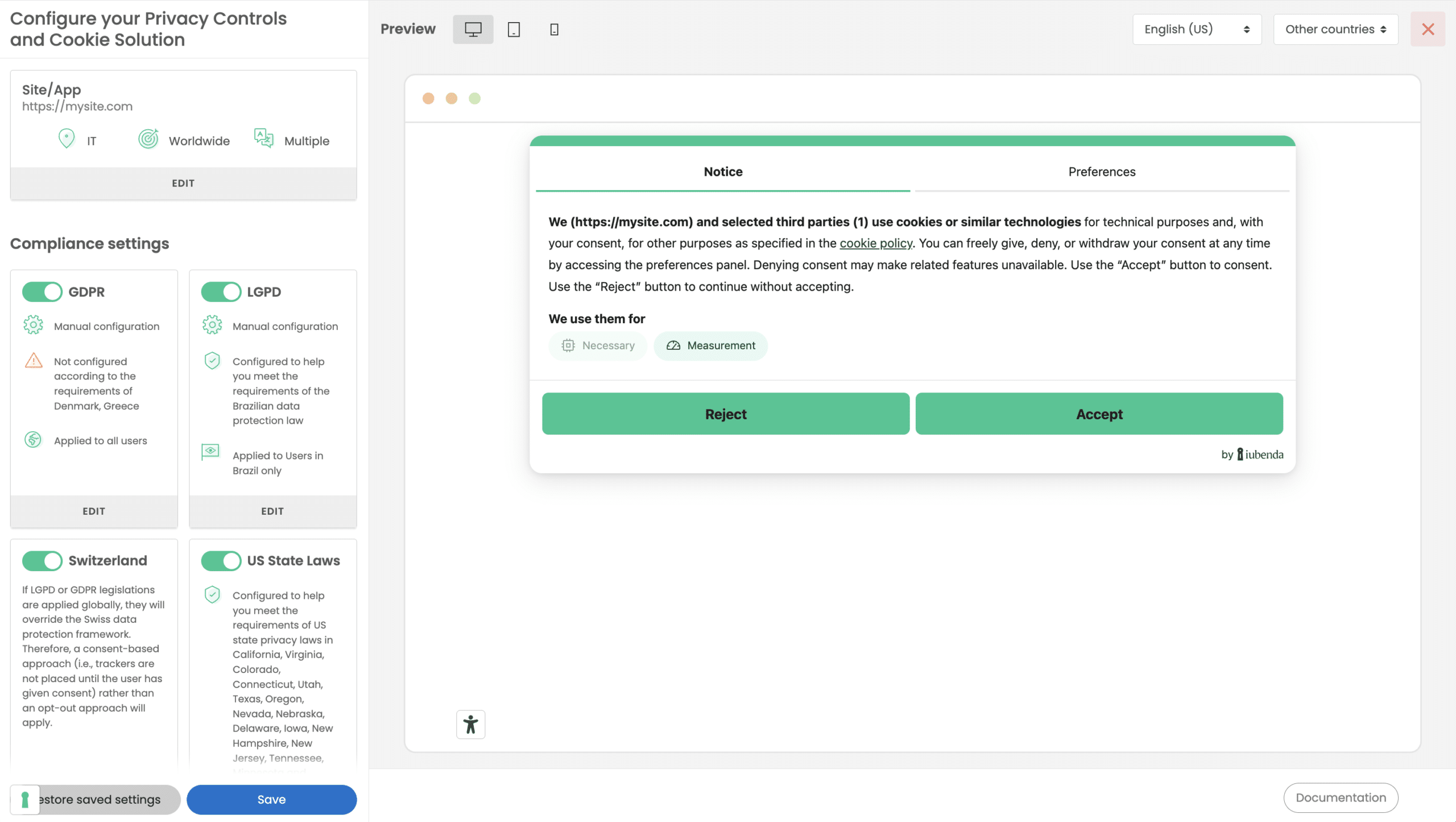
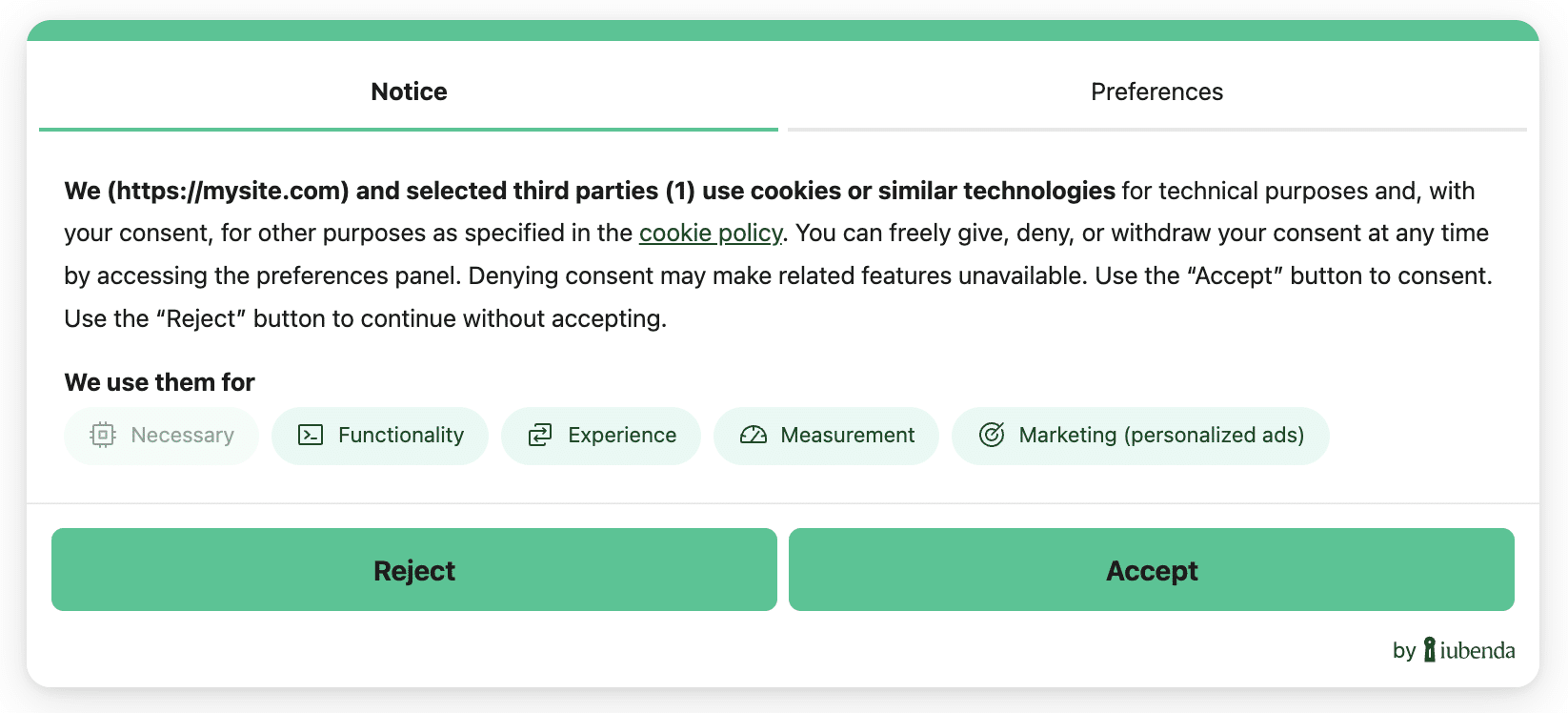
This is an example of a cookie banner created with Privacy Controls and Cookie Solution. Remember that cookie notices are just one part of the requirements: you must also link to an accurate cookie policy and block cookies prior to consent.
Set up prior blocking of cookie scripts
Few categories of cookies are exempt from the consent requirement. Therefore, you need to block scripts from running until you get valid user consent.
Simplify your cookie-blocking process with auto-blocking
There’s a simpler option available for the prior blocking of cookies and trackers. Our auto-blocking feature automates the process, saving you time and effort. This is the recommended approach for Wix sites, since Wix’s closed architecture makes manual tagging more difficult.
If you prefer to manually tag your scripts, follow the step-by-step instructions below, or explore other methods in our general introduction to the prior blocking of cookies.
How to implement prior blocking via manual tagging on your Wix site
Manual tagging is the method of prior blocking we use for the tutorial below. You can view other methods here.
To set up prior blocking, you need to make some minor changes to your site’s scripts:
- Identify the script/iframe for any additional services running on your website (e.g., a social media follow button)
- Add some simple text to the HTML code (we show you how below)
- Save
In this tutorial, we are going to block a social media follow button.
Not sure which services you need to block? If you’re using a Cookie Policy generated by iubenda, the services listed in your Cookie Policy are most likely the ones you need to modify.
Step 1: Identify the script
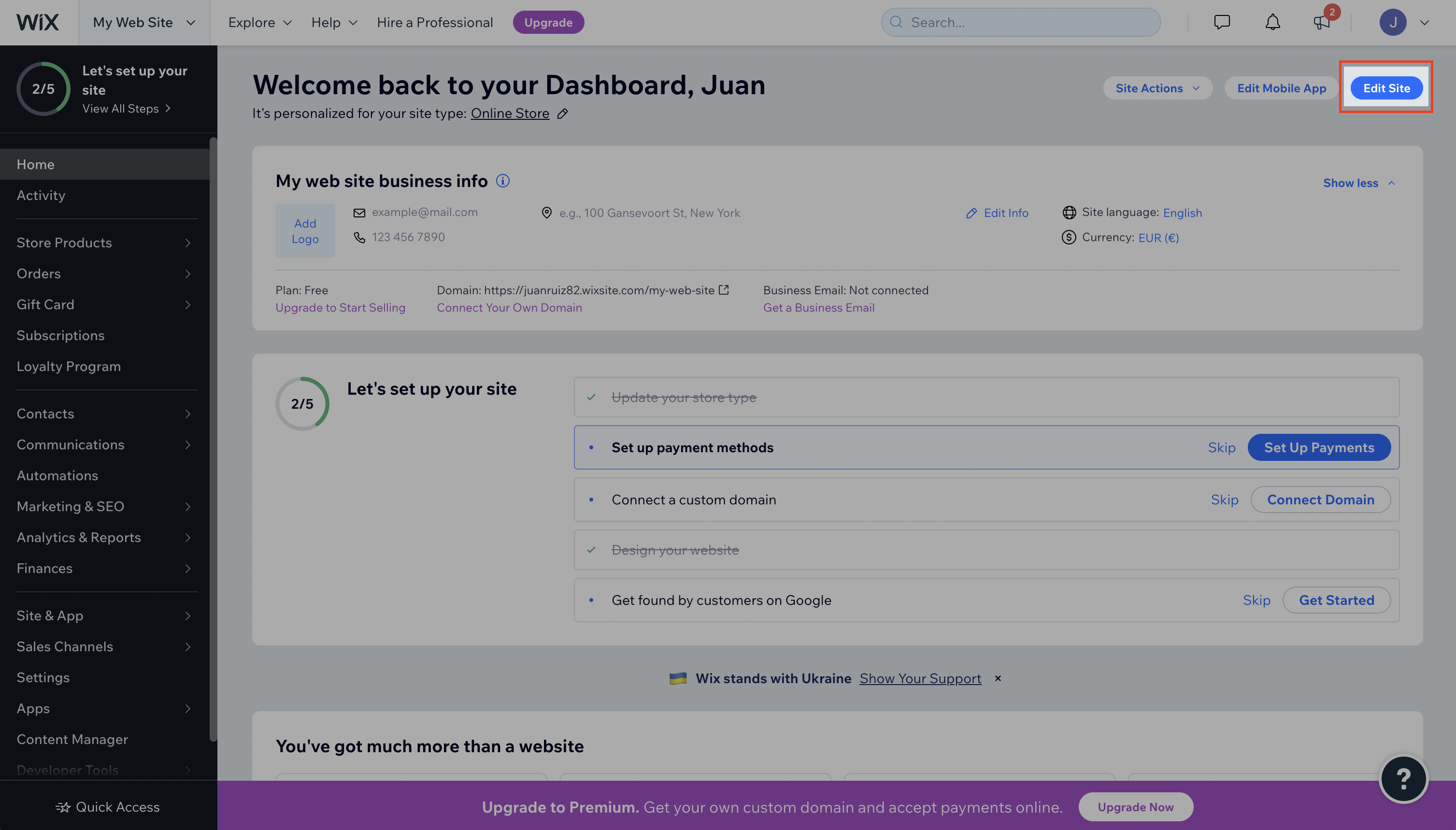
In your Wix dashboard, click on Edit Site
Then, open your Page Code tab to find the script you need to modify (search for the service you want to block) and click Edit Code to open the code editor.
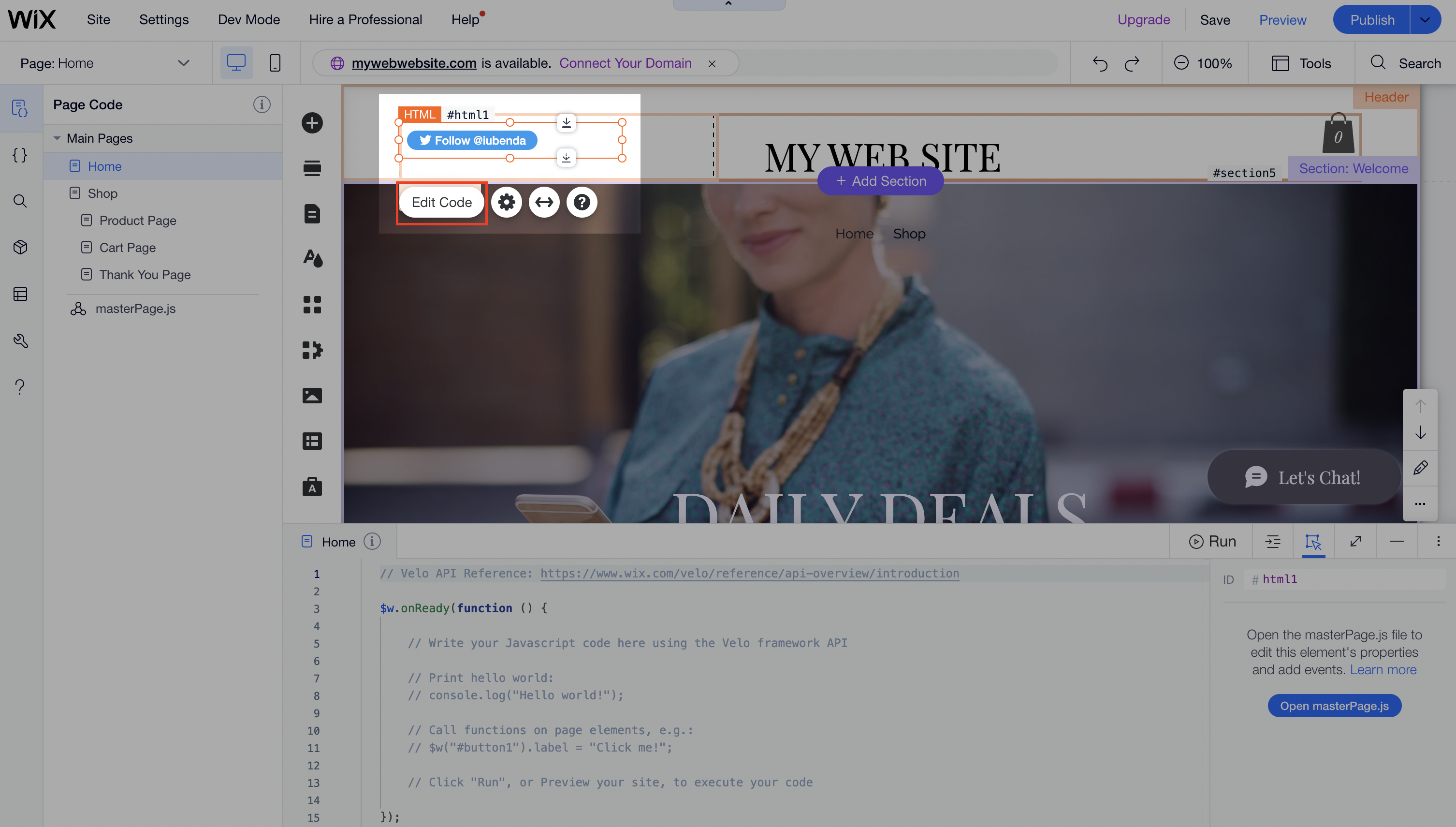
Step 2: Modify your script
- Add the class
_iub_cs_activateto the script tags, and change the “type” attribute fromtext/javascripttotext/plain - Replace the src with
data-suppressedsrcorsuppressedsrc - Specify the categories of the scripts/iframes with a comma-separated
data-iub-purposesattribute, e.g.data-iub-purposes="2"ordata-iub-purposes="2, 3"
More about categories and purposes
Purposes are your legal reasons for processing the particular type of user data. Different scripts on your site will fall into different categories and serve different purposes. Purposes are grouped into 5 categories, each with an id (1, 2, 3, 4, and 5):
- Necessary (id:
1) - Basic interactions & functionalities (id:
2) - Experience enhancement (id:
3) - Measurement (id:
4) - Marketing (id:
5)
For more detailed info on categories and purposes, see our guide here.
Here is an example using a social media follow button:
We need to 1. Add the class and change the “type” attribute, 2. replace the src and 3. specify the categories.
The code structure should look like this:
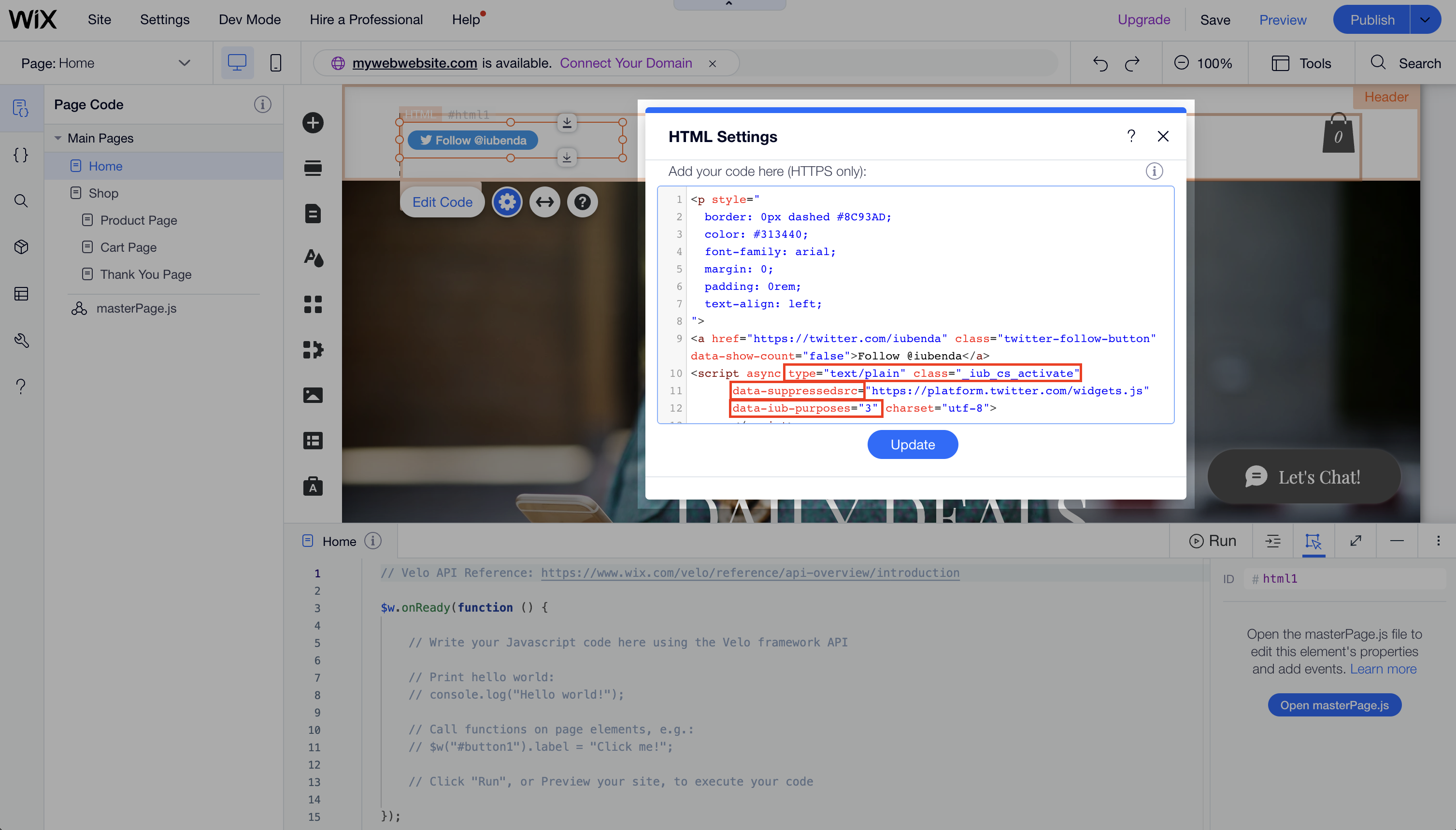
<p>Follow button:</p>

        <!-- please note type="text/plain" class="_iub_cs_activate" data-suppressedsrc="..." (manual tagging) and data-iub-purposes="3" (per-category consent) -->
<a href="https://twitter.com/iubenda" class="twitter-follow-button" data-show-count="false">Follow @iubenda</a>
  <script async type="text/plain" class="_iub_cs_activate" data-suppressedsrc="https://platform.twitter.com/widgets.js" data-iub-purposes="3" charset="utf-8"></script>
Step 3: Save!
Not sure if you’ve set up correctly? Check out the live example and FAQs below.
Live example
This is an example that shows everything we have described above. You can use this CodePen as a guide to see what happens before and after blocking scripts via manual tagging. (we’ve embedded a YouTube video, and a Twitter follow button)
Both scripts are blocked through manual tagging. Since both widgets are part of the Experience purpose (id 3), we’ve added data-iub-purposes="3" to their scripts so that the Privacy Controls and Cookie Solution can properly identify them for release.
Click on the Accept button, or activate the “Experience” toggle, to release these scripts (refresh the page to return to the starting point).
How can I tell if I’ve set prior blocking up properly?
As you can see in the CodePen example, the scripts do not load if you do not consent. (You can test this function again by opening the example in incognito mode in your browser.)
After you have saved, open your site in incognito mode and check if the scripts you blocked via manual tagging stay blocked until you consent.
For other blocking options, see Google Consent Mode as an alternative to prior blocking, Google Tag Manager to simplify the blocking of cookies, or the IAB Transparency & Consent Framework and how to enable it.
Good to know: Wix-specific considerations
Keep these points in mind when using Privacy Controls and Cookie Solution on Wix:
- Paid plan required. Custom code injection requires a paid Wix plan (Light or above) with a connected domain. The free plan does not support custom code.
- Code must be first in the head. For auto-blocking to work correctly, the iubenda snippet must be the first element in the
<head>. Wix may add its own scripts before yours, which could affect blocking behavior. Test your setup after installation. - Use Wix’s native GTM integration. If you use Google Tag Manager, connect it through Settings > Marketing Integrations in the Wix dashboard rather than via custom code. You can then use iubenda’s GTM template for consent-based script management.
See also
- Privacy policy for Wix websites
- How to add terms and conditions on Wix
- Consent Database for Wix
- Privacy Controls and Cookie Solution: getting started
- How to customize the look and behavior of the cookie banner
- Introduction to the prior blocking of cookies
- Google Consent Mode: set up GTM with iubenda