

You can also do this by prompt. Connect iubenda to Claude or ChatGPT and ask it to scan your site and configure your cookie banner, then install it with the steps below. See how it works
You can add Privacy Controls and Cookie Solution to any custom website to display a fully customizable cookie banner, collect cookie consent, and implement prior blocking as required by the ePrivacy Directive, GDPR, and other privacy regulations.
What the solution supports
When you embed the Privacy Controls and Cookie Solution on your site, you get access to the full feature set of the iubenda cookie management platform:
- Fully customizable cookie banner with options to match your site’s branding and colors
- Automatic cookie policy generation based on the services detected on your site
- Auto-blocking of scripts that install cookies before consent is collected
- Integration with Google Consent Mode v2 (iubenda is a Google-certified CMP)
- Integration with IAB’s Transparency and Consent Framework (TCF 2.3)
- Support for US state privacy laws (CCPA/CPRA, VCDPA, CPA, CTDPA, and others)
- Support for the Swiss Federal Act on Data Protection (FADP)
- Support for Brazil’s LGPD
- Granular, per-category consent (e.g. Functionality, Experience, Marketing)
- Geo-detection to limit consent requests to regions where legally required
- Storage of consent proofs for accountability
1. Generate a cookie policy
First, go to your iubenda Dashboard and click on [Your website] > Privacy and Cookie Policy > Edit. You’ll notice a Cookie Policy box in the right column.
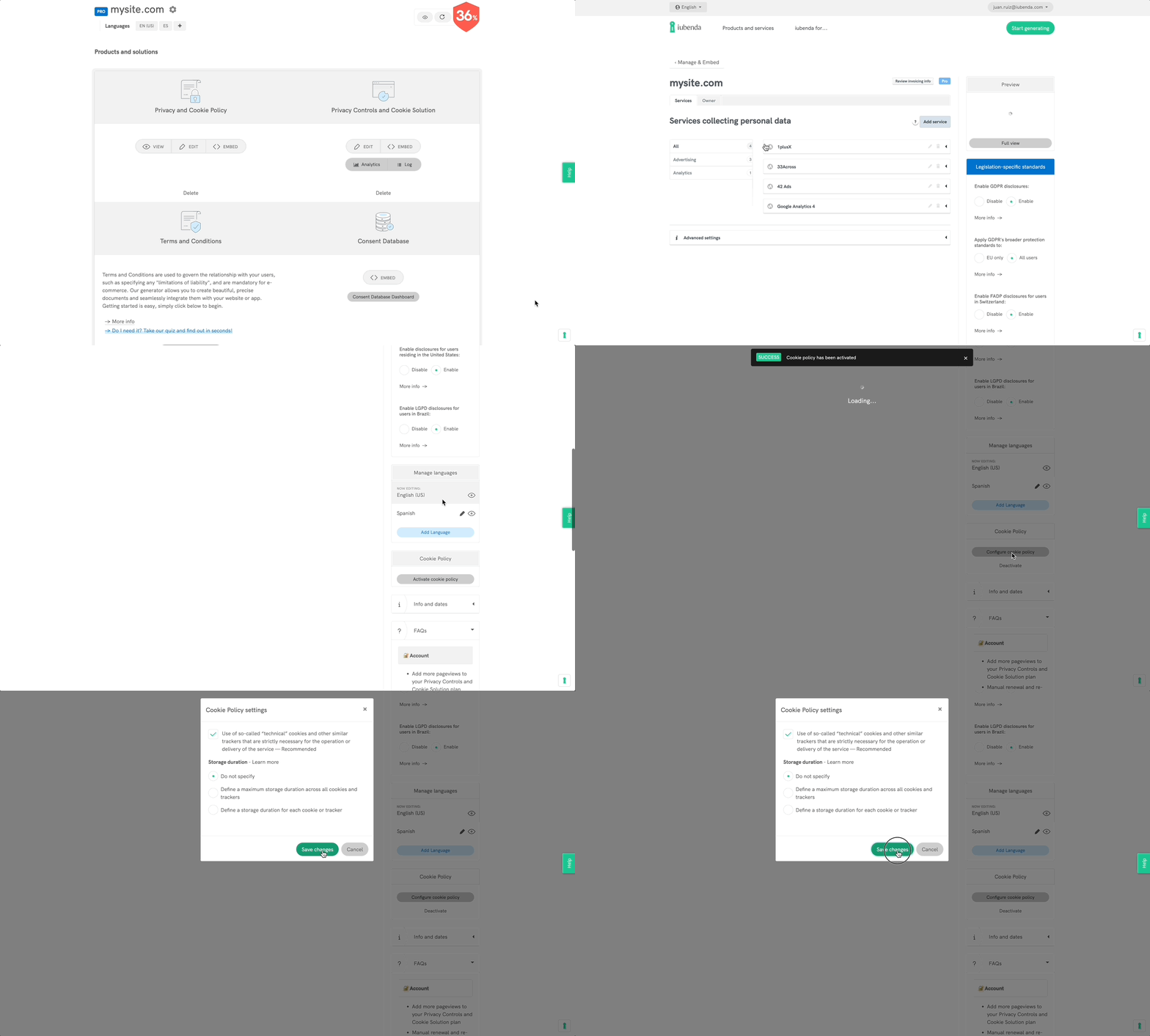
Click on Activate cookie policy and Save changes: your cookie policy will be generated automatically based on the configuration of your privacy policy.
Note
The Privacy Controls and Cookie Solution requires that you link to a cookie policy from your banner as legally required. If you have the cookie policy feature activated on your iubenda account, the Privacy Controls and Cookie Solution automatically integrates your cookie policy into the solution once the option is selected.
If you already have your own cookie policy, you can add the link in the advanced view of the Privacy Controls and Cookie Solution configurator (see below). Select Custom under Cookie Policy > Cookie Policy URL. More info on the Privacy Controls and Cookie Solution advanced guide.
2. Add the cookie banner
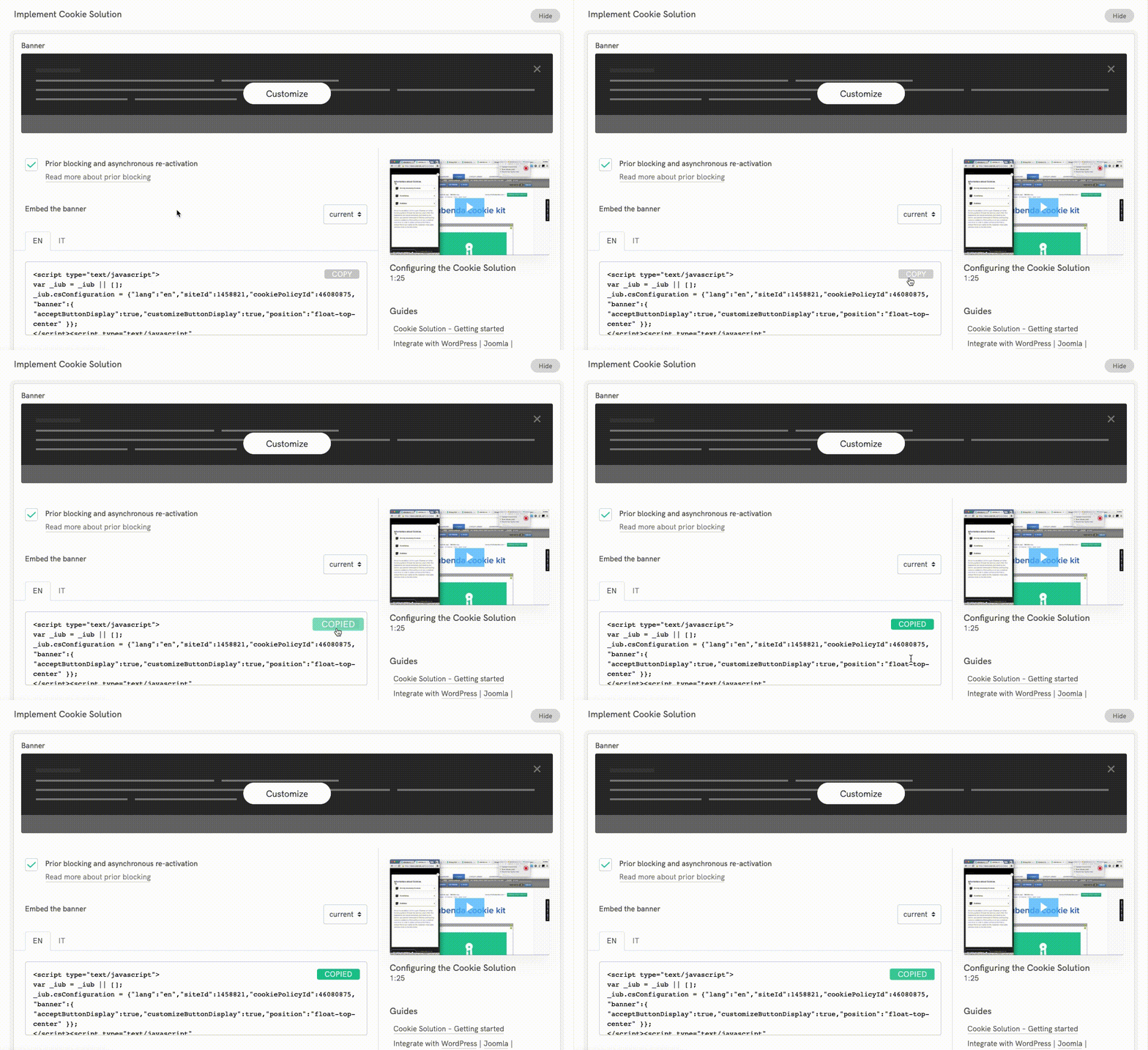
After configuring the Privacy Controls and Cookie Solution as you’d like and activating your legally required cookie policy (optional if you have your own custom policy), copy the Privacy Controls and Cookie Solution code snippet from within your dashboard and paste it into the <head> tag of your website’s HTML as the first element.
Note
The remote configuration feature simplifies implementation by automatically applying all changes made in the Privacy Controls and Cookie Solution configurator to your website, no re-embedding required. This makes it easier to keep your site up to date.
Remote configuration also applies changes to Custom CSS, TCF settings, and US laws support automatically.
3. Set up prior blocking of cookie scripts
Few categories of cookies are exempt from the consent requirement. Therefore, almost all scripts that install or can install cookies must be blocked before consent is obtained.
Simplify your cookie-blocking process with auto-blocking
There’s a simpler option available for the prior blocking of cookies and trackers. Our auto-blocking feature automates the process, saving you time and effort.
If you prefer to manually tag your scripts, see our guide on blocking via manual tagging or explore other methods in our general introduction to the prior blocking of cookies.